

Step 1 - Ensure Pickup & Drop Off Details Are Correct
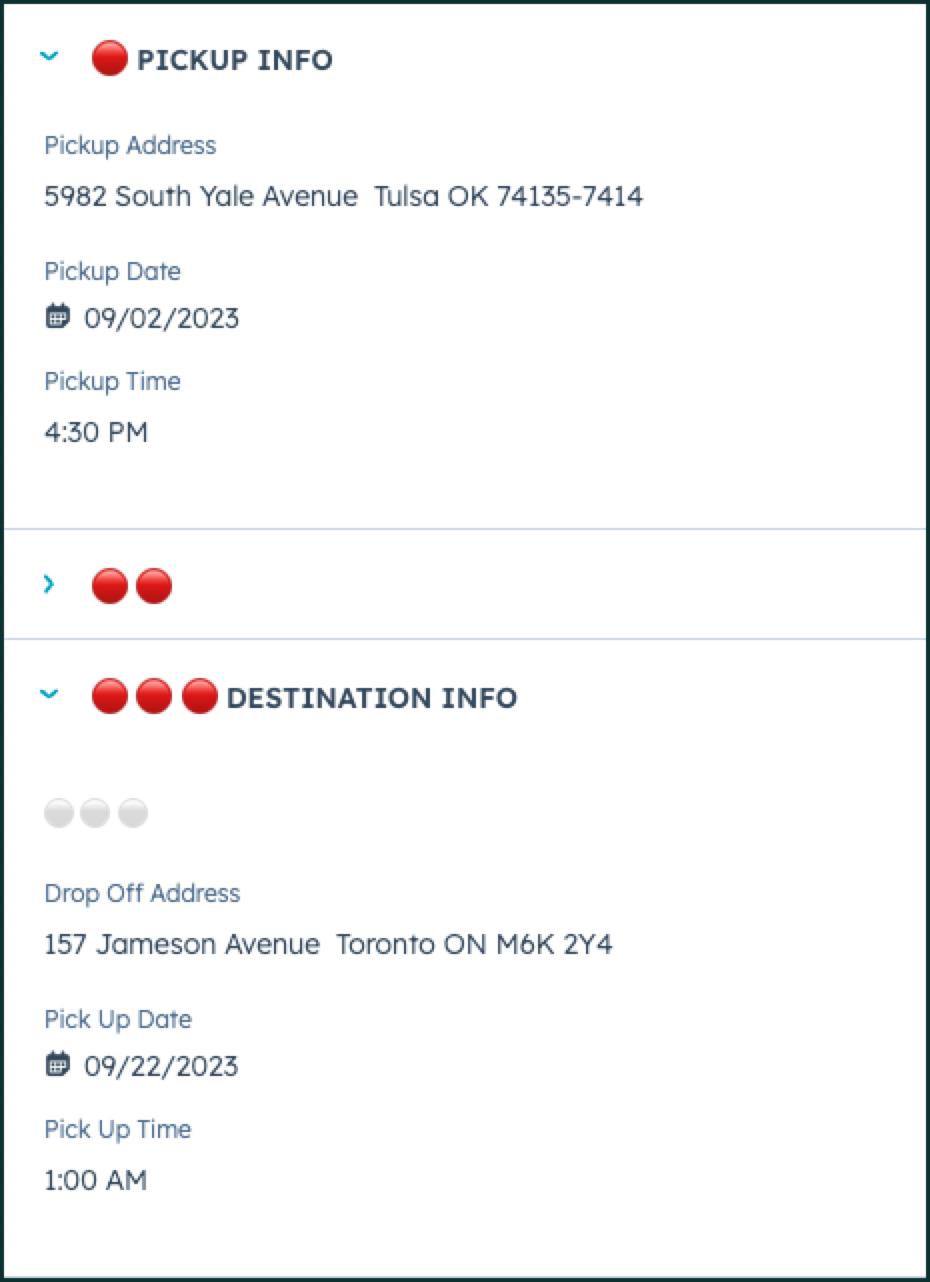
On the left side of the screen, make sure that the Trip Details section is completed and the 🔴 PICKUP INFO and 🔴🔴🔴DESTINATION INFO details are completed for the Drop / Pick. Make sure you have also created a quote for this customer, and have published it.
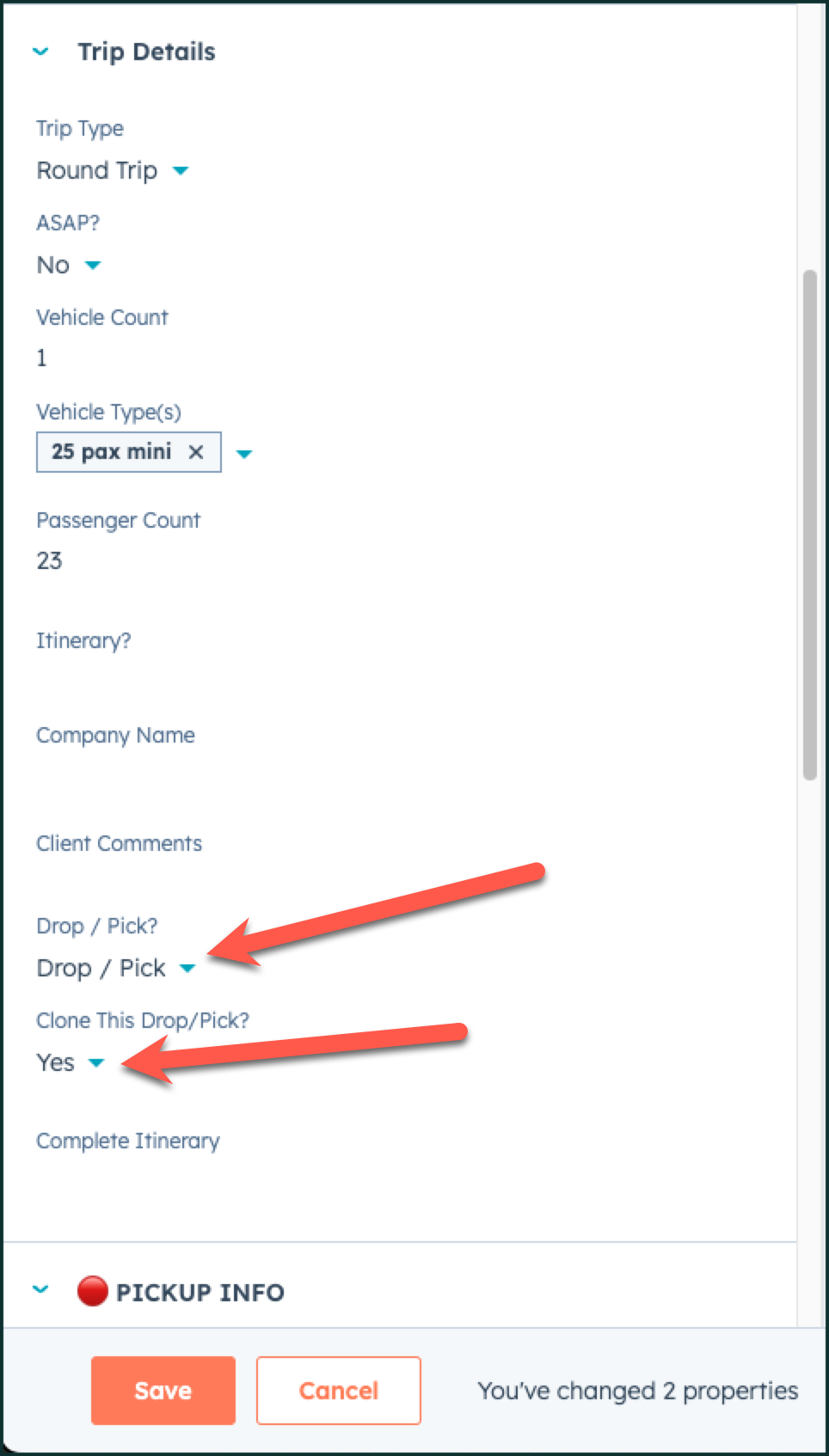
Step 2 - Choose Drop/Pick & Clone this Drop/Pick
On the left side of the screen, under Trip Details, selet Drop/Pick, under the Drop/Pick field, and then under the filed Clone this Drop/Pick choose Yes. Hit Save.
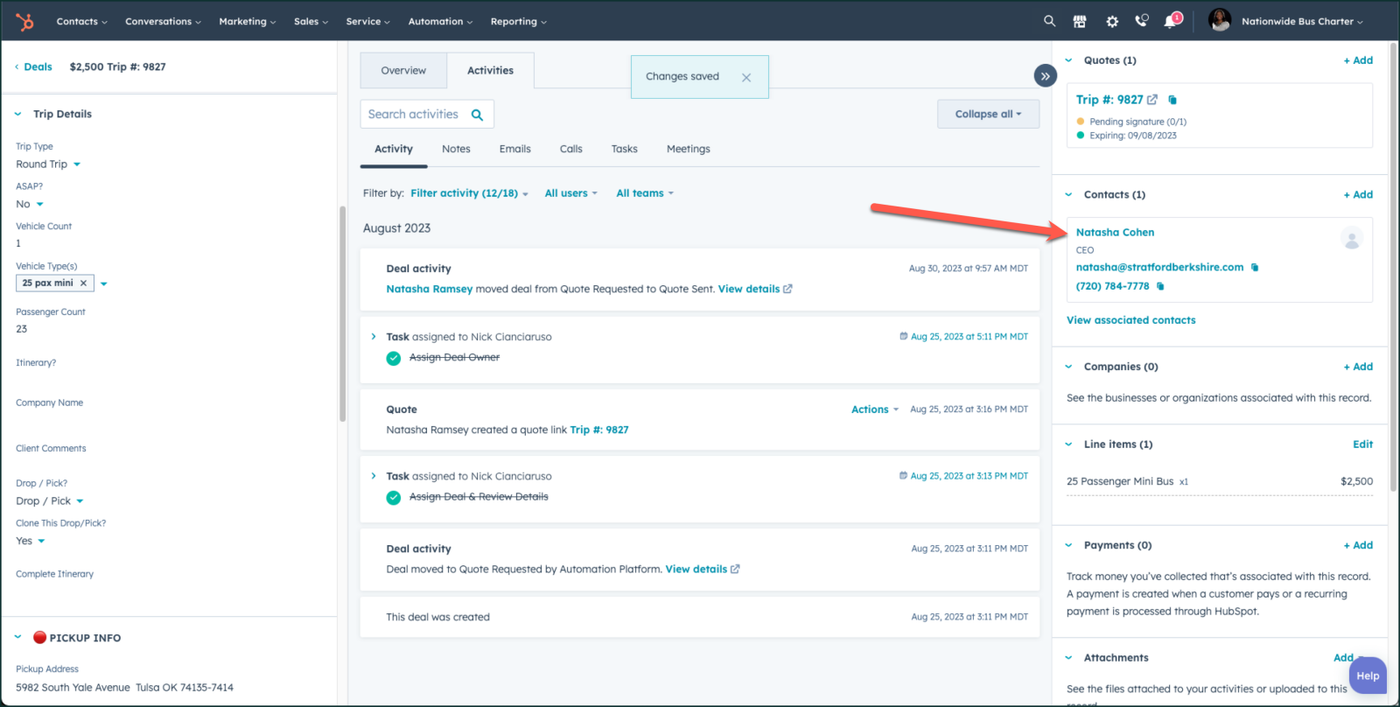
Step 3 - Navitgate to the associated contact
On the right side of the screen, go to the contact, and click on their name.
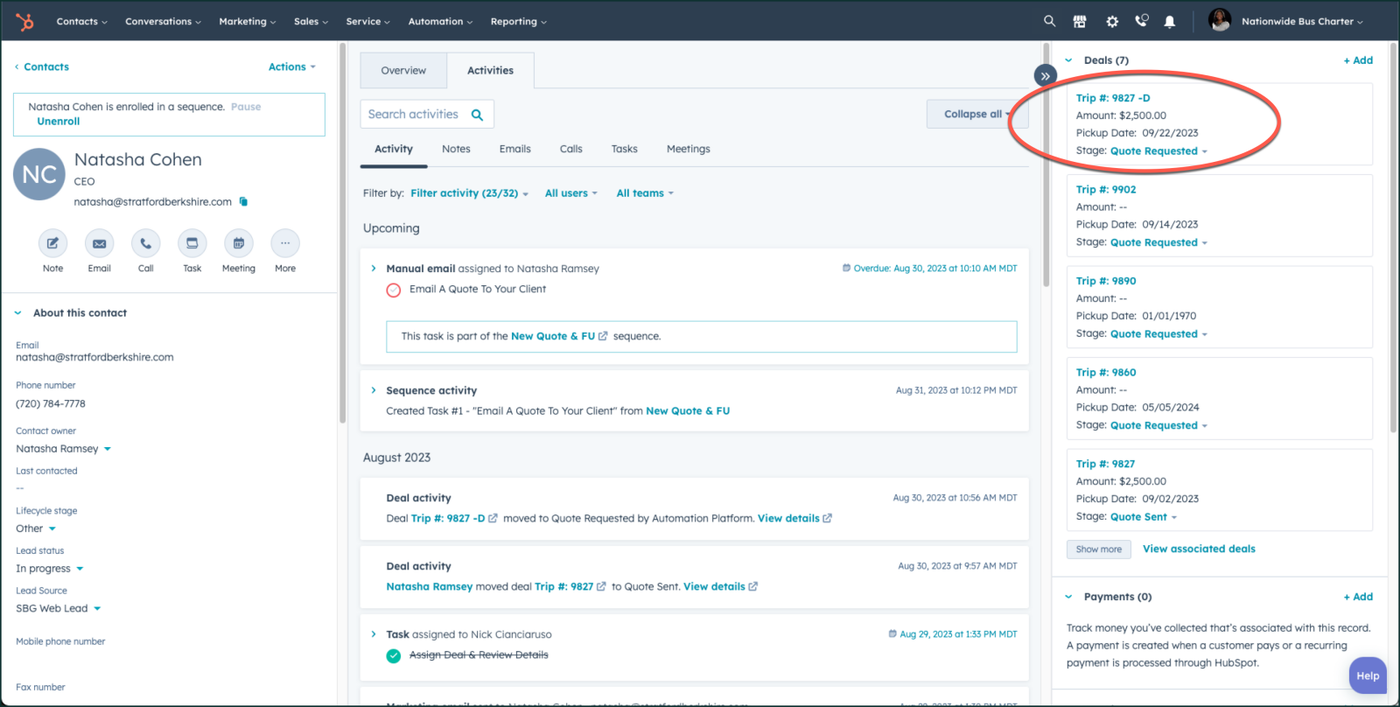
Step 4 - Navigate to the new deal created
On the right side of the contact screen, you will now see a new trip has been created for the cloned deal. This is indicated by a -D (for duplicated) at the end of it. Click on that trip.
Step 5 - Review the PickUp & Drop Off Details
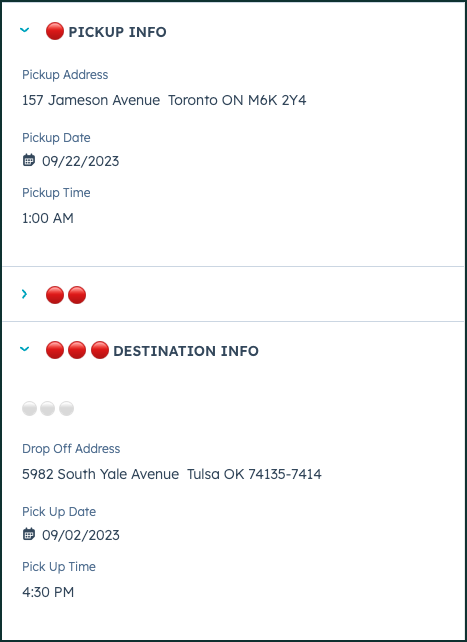
HubSpot should have reversed the pickup and drop off address, dates, and times, for you on this trip. Review for accuracy.
Step 6 - Add A New Quote
Add a new quote, and continue the quoting process as usual.
👍
Congratulations! You've successfully cloned your deal for a drop/pick!
Need Support?
Please visit our Support page and submit a ticket, view knowledge base articles, etc. Or send us an email at helpme@stratfordberkshire.com to open a new ticket.