
This article will explain how to add snippets in your HubSpot.
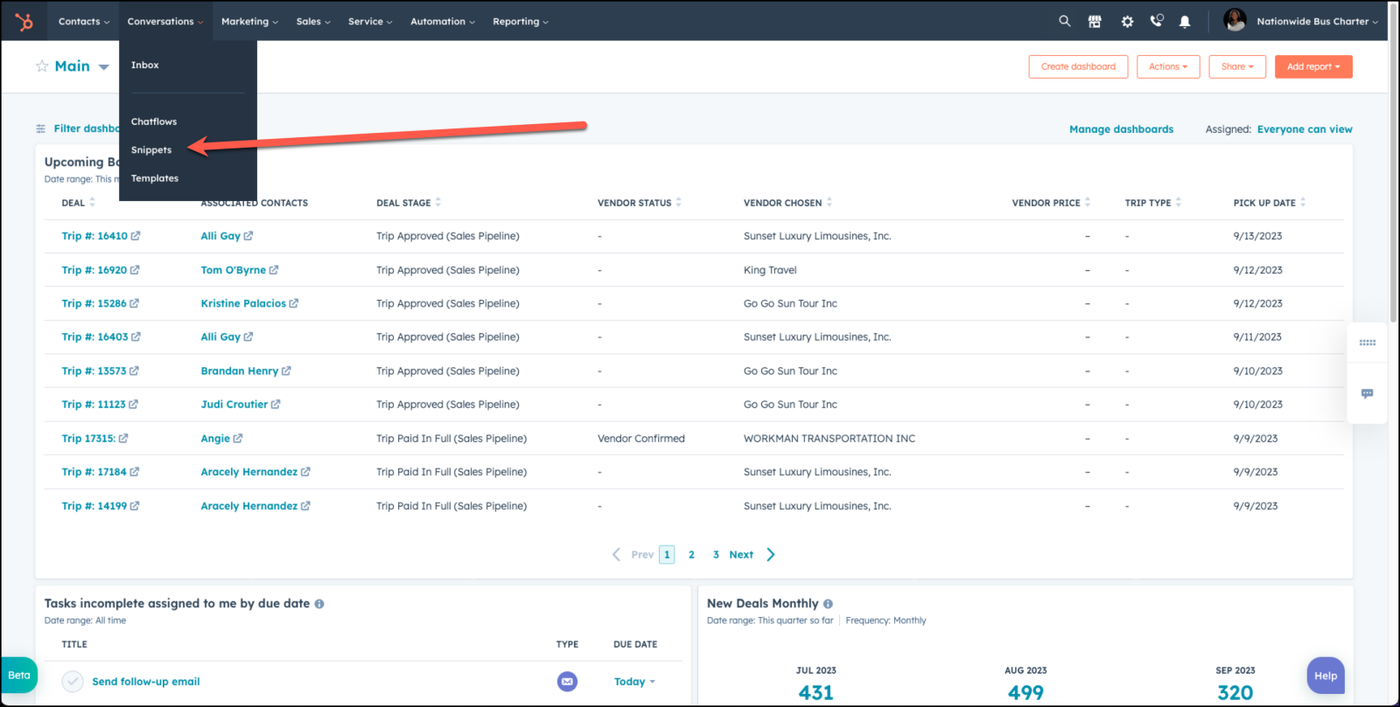
Step 1: Go to Conversations -> Snippets
Navigate to snippets, by going to Conversations and then clicking on Snippets.
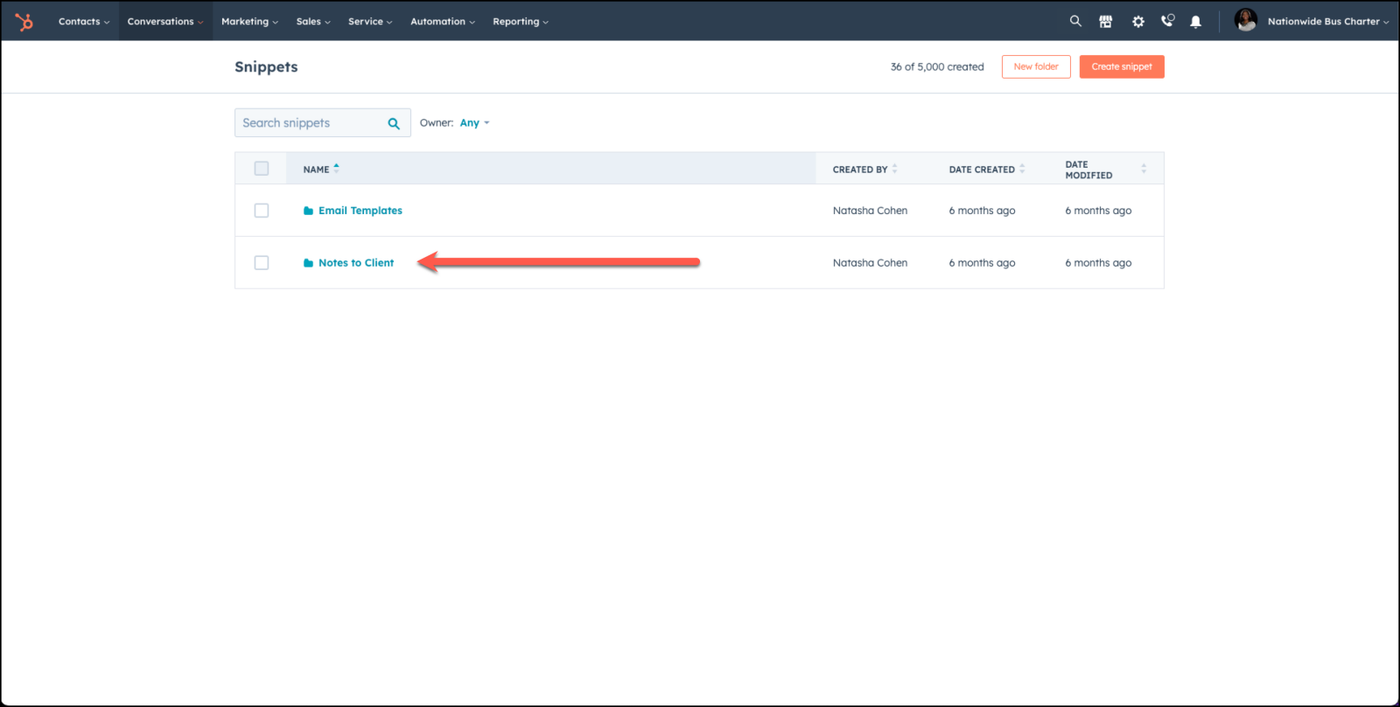
Step 2: Choose the correct folder, likley Notes to Client.
Choose the correct folder that you want to put your snippet in. More times than not, it will be in the Notes to Client folder.
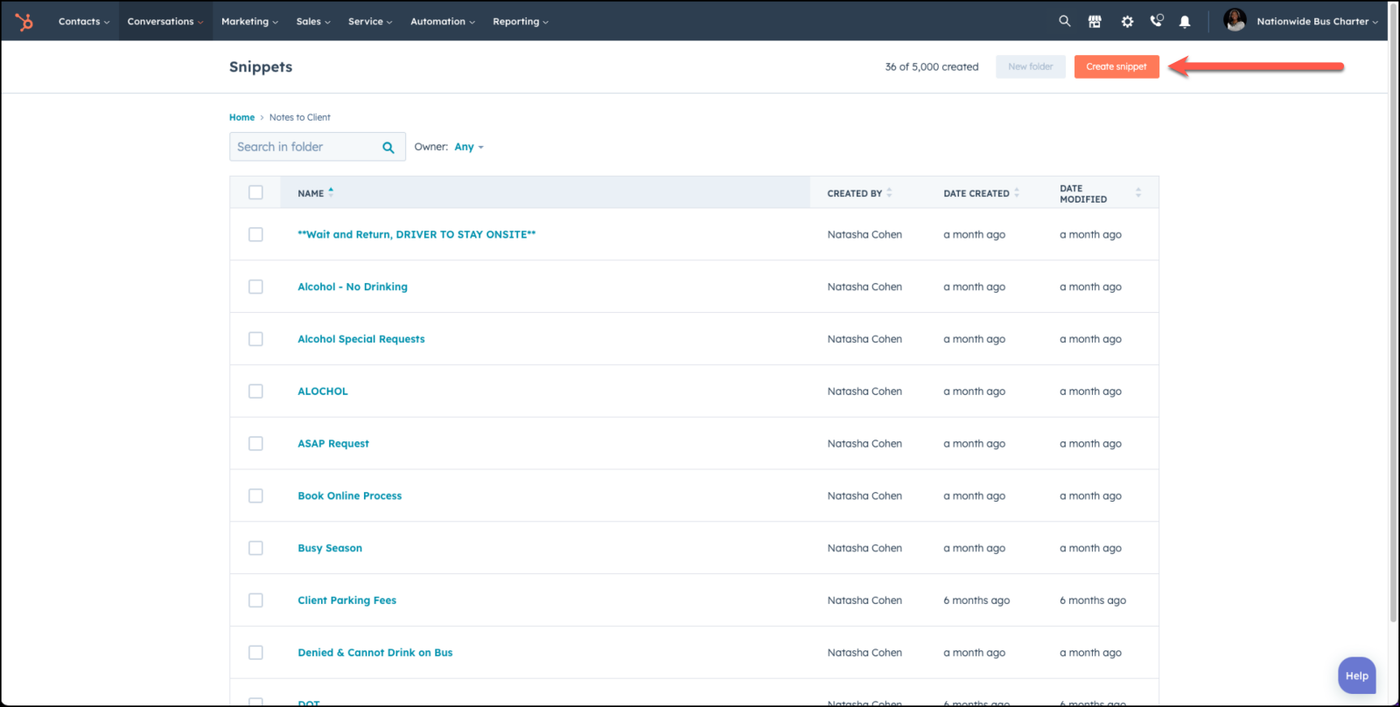
Step 3: Click Create Snippet
Click the orange button that says Create Snippet.
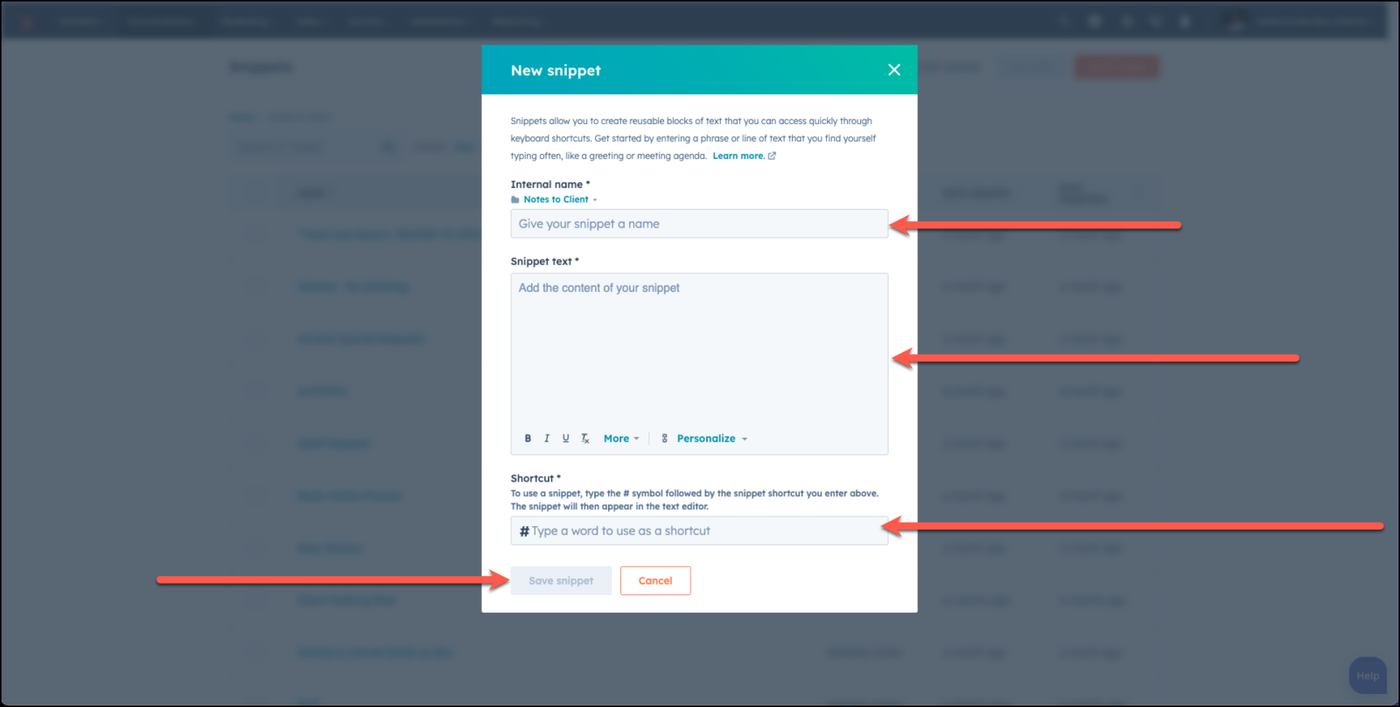
Step 4: Name your Snippet, Add Snippet Details, and give it a hashtag
A new pop-up window will appear. Name the snippet, add anything you want to appear in that snippet, and give it a hashtag, and press save snippet.
👍
Congratulations! You've successfully added a snippet! It can now be added in your quotes, emails, or anywhere else snippets are accepted!
Need Support?
Please visit our Support page and submit a ticket, view knowledge base articles, etc. Or send us an email at helpme@stratfordberkshire.com to open a new ticket.