

Step 1: Navigate to the Vendor / Company
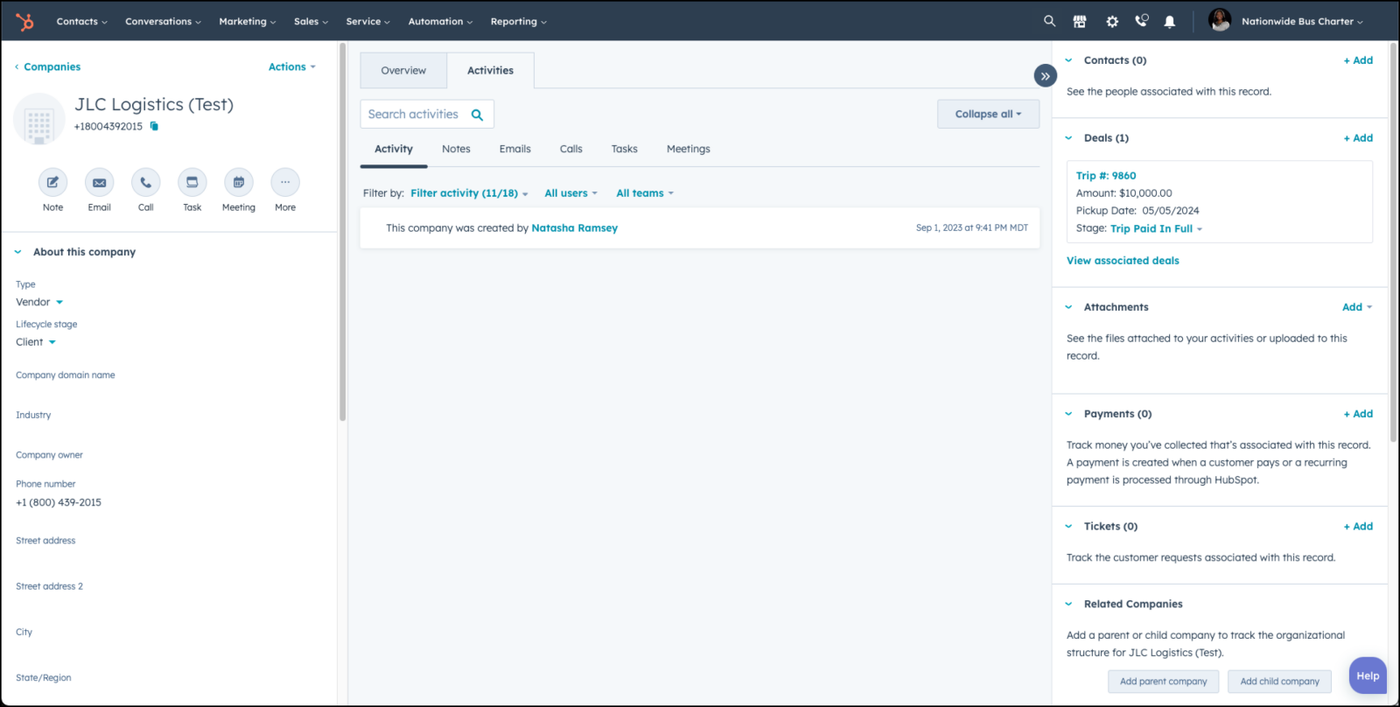
Go to Contacts → Companies and go to the company record you wish to work in.
Step 2: Add the Associated Contact
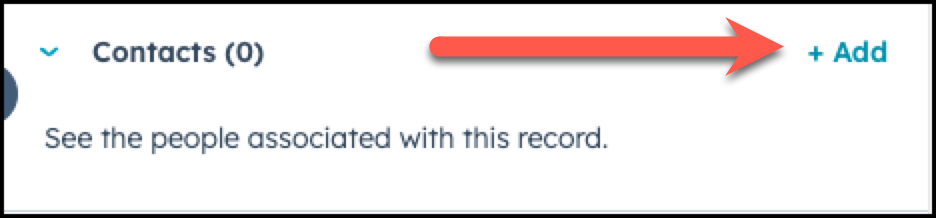
On the right side of the screen click +Add under Contacts to add a new contact.
Step 3: Search for a contact, or add a new contact
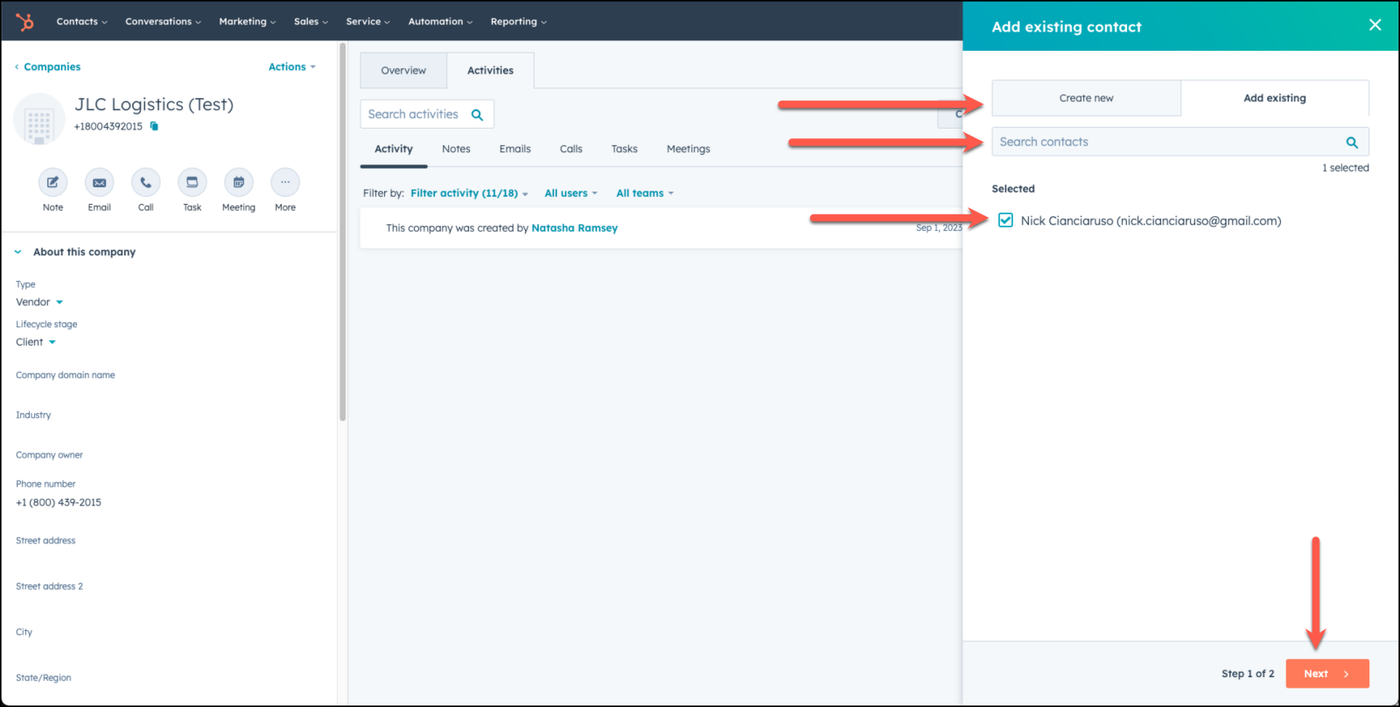
Search to see if the contact exists in HubSpot. If not, then click on Create New to add a new contact. If yes, then check the name of the contact and choose Next when finished.
Step 4: Click +Add Association Label
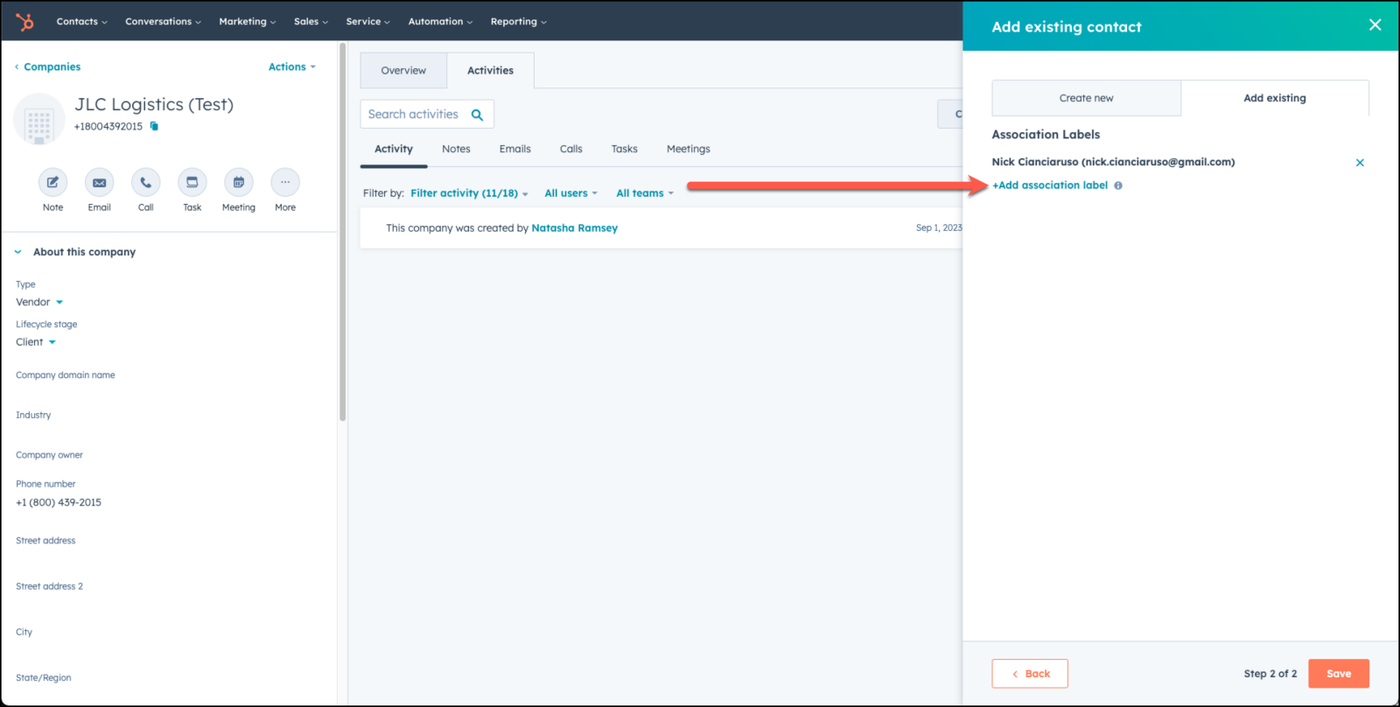
Choose to add an association label by clicking on +Add Association Label.
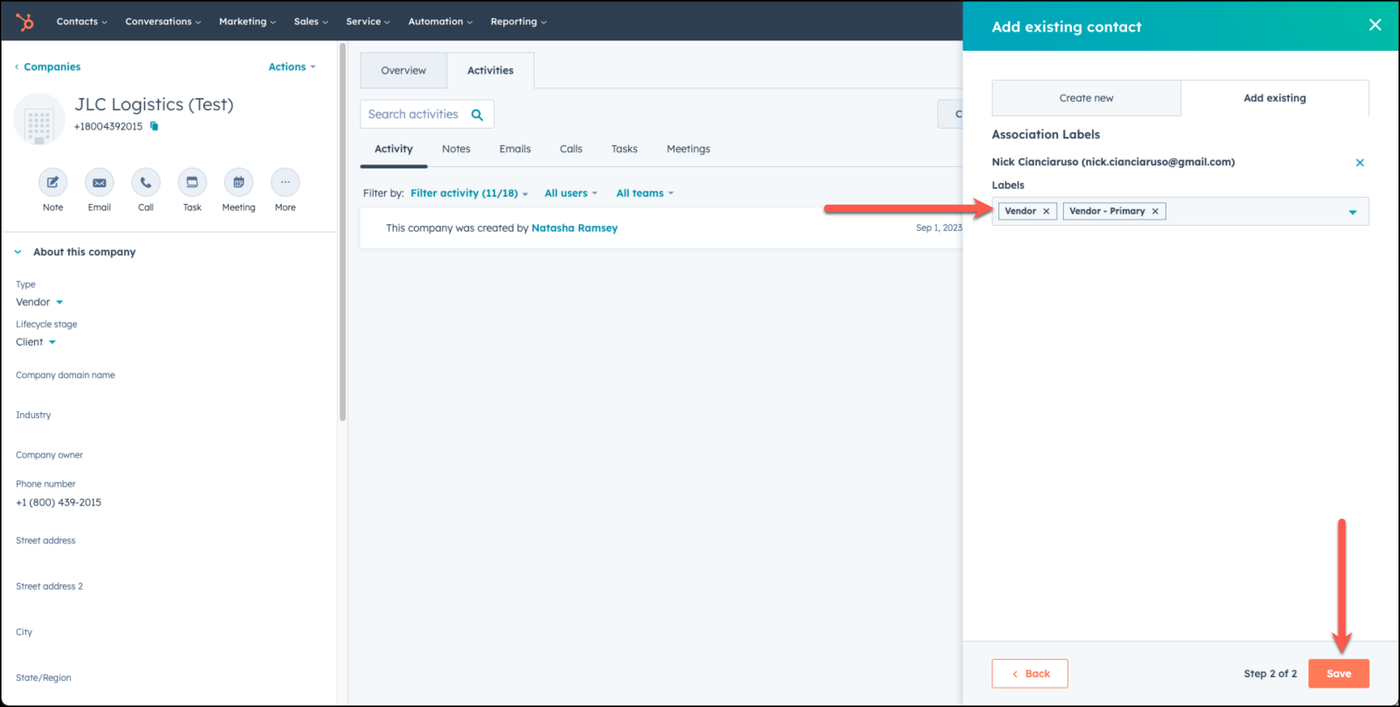
Step 5: Add the label of Vendor
Choose the label Vendor and if it is the primary contact of the vendor, also add Vendor - Primary. Then choose save.
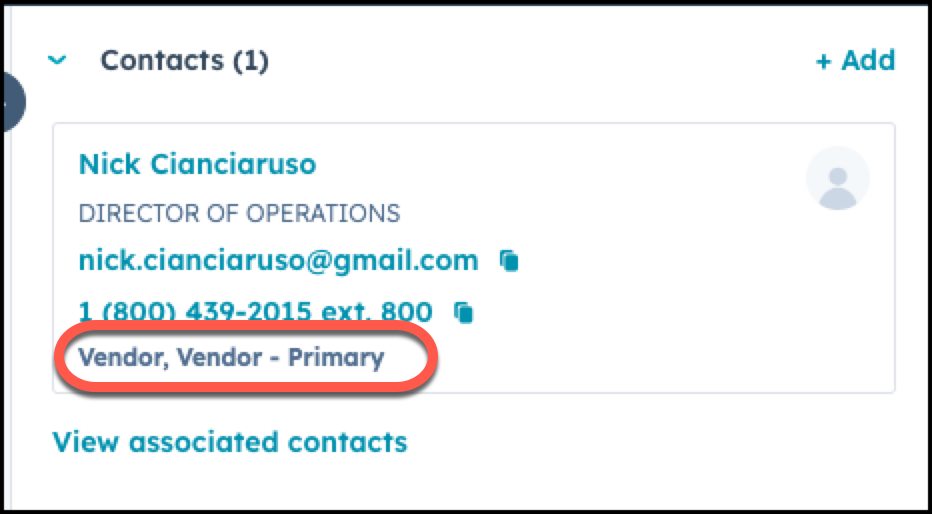
Step 6: Confirm that you have the associated contact added with the correct labels
Double check to make sure that you have added the contacts you wanted to this vendor, and added the correct label on them.
👍
CONGRATULATIONS! You've successfully added contact(s) to your vendor record!
Need Support?
Please visit our Support page and submit a ticket, view knowledge base articles, etc. Or send us an email at helpme@stratfordberkshire.com to open a new ticket.