

This article will explan how to edit a published quote in HubSpot.
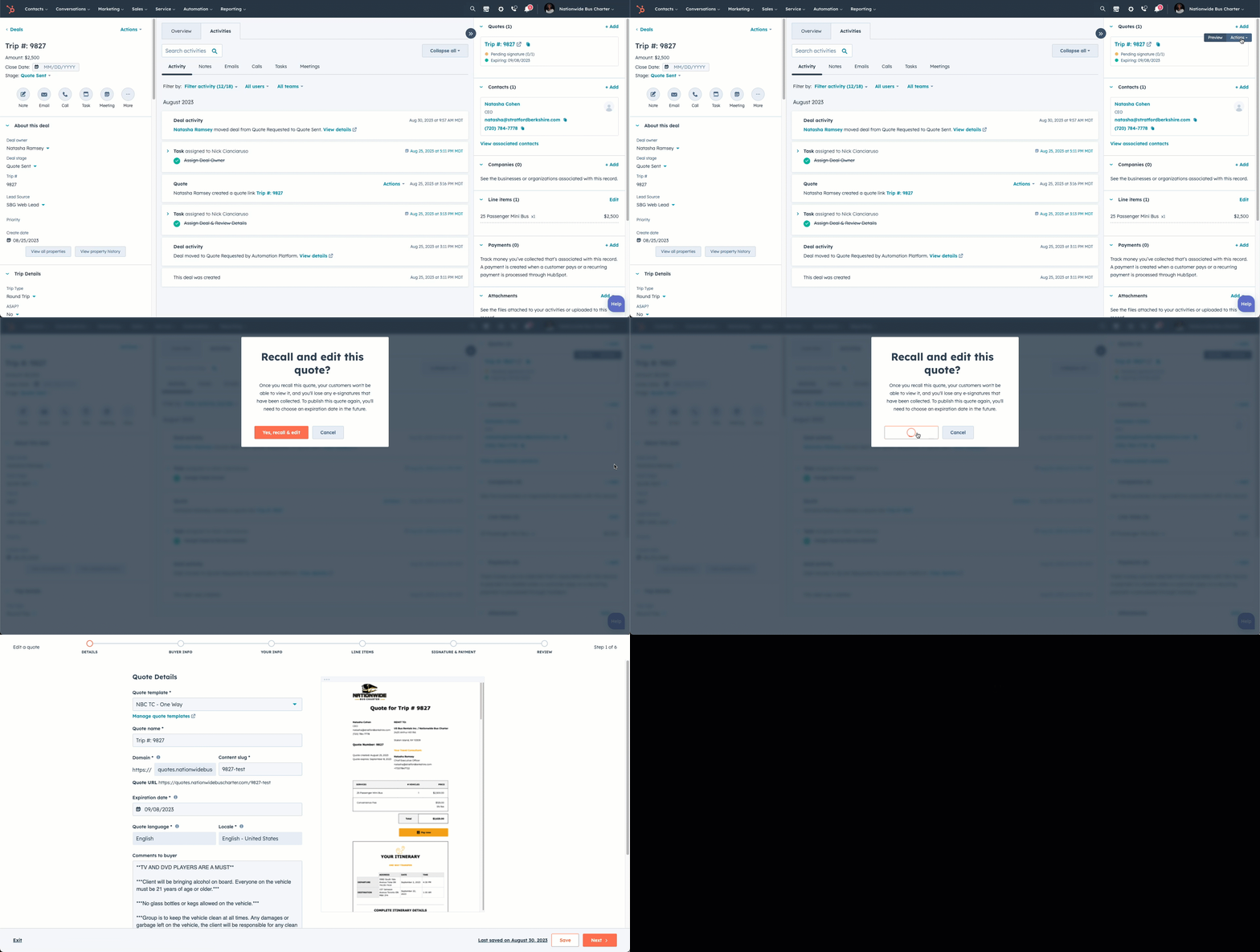
Instructions
- Navigate to your deal or trip that has the published quote associated with it.
- Hover your mouse over the quote, so two buttons will appear - Preview & Actions.
- Click on Actions.
- Click on Recall & Edit
- A pop-up will ask you if you are sure you want to recall and edit the published quote. Click Yes, Recall and Edit.
- You will now to be taken the screen where you can edit your quote.
- Finalize your quote, and publish when ready!
Important Notes
- A quote must be published (a live link) in order for you to edit and recall that quote.
- If you make changes to your itinerary, trip details, etc, and that needs to be reflected in your quote, you must update those details first, and then recall and edit your quote.
- When you recall and edit your quote, the quote goes into a draft status, and the link will no longer work for your customer.
- As long as you do not change the original content slug of the published quote, then when you publish it again, that link will work the same for your customer.
- If you apply an e-signature requirement on your quote, and the customer signs the quote, you will not be able to recall and edit the quote.
👍
Congratulations! You've successfully recalled and edited a published quote.
Need Support?
Please visit our Support page and submit a ticket, view knowledge base articles, etc. Or send us an email at helpme@stratfordberkshire.com to open a new ticket.