

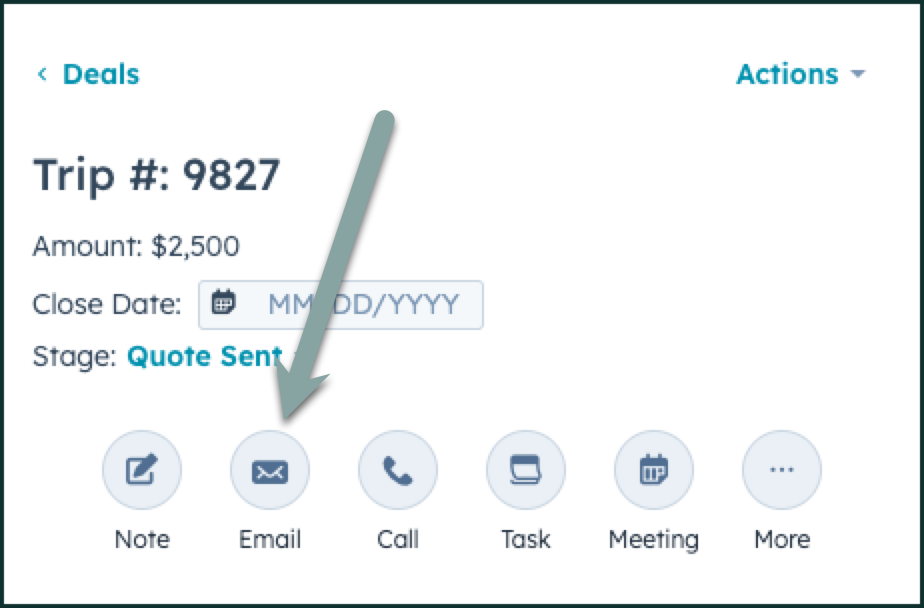
Step 2 - Open a new email.
In the deal, or under the contact, click on the Email button to write an email to your client.
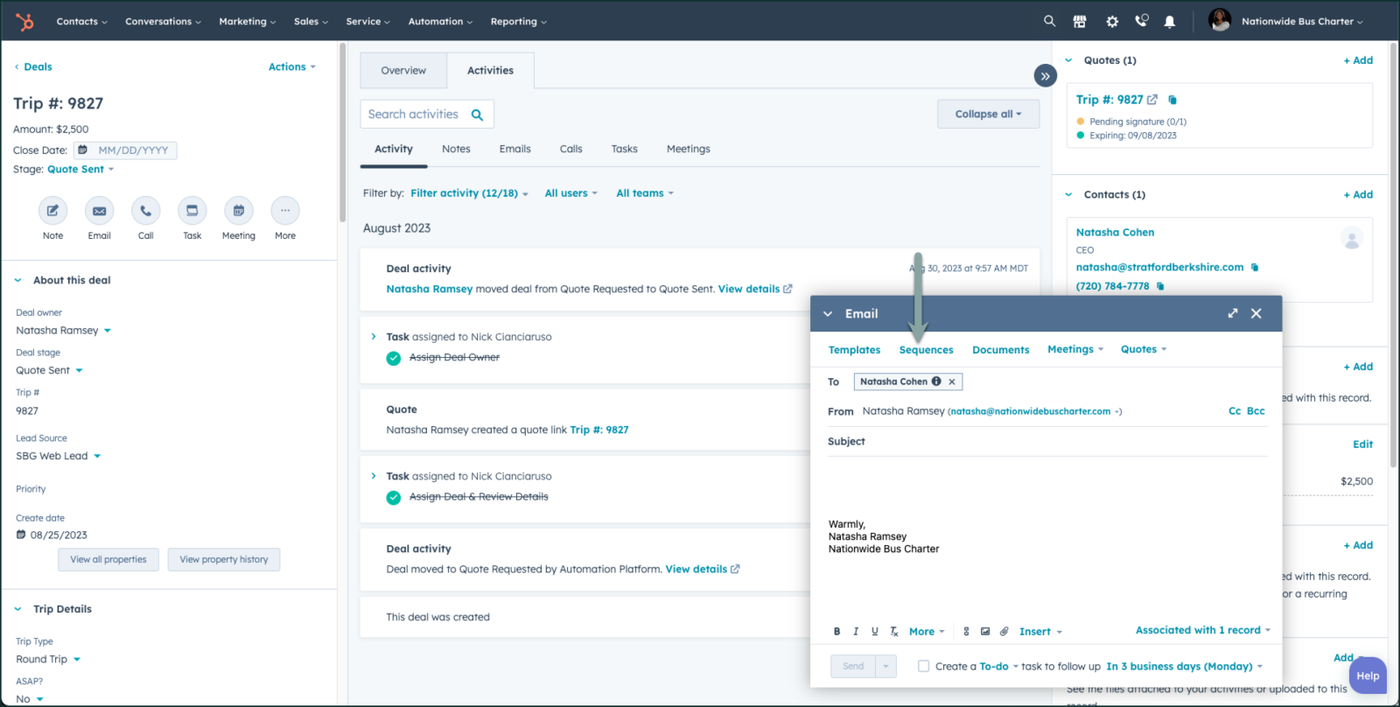
Step 3 - Navigate to Sequences
In the email window that popped up in your HubSpot, click on the Sequences link to open up the sequences window.
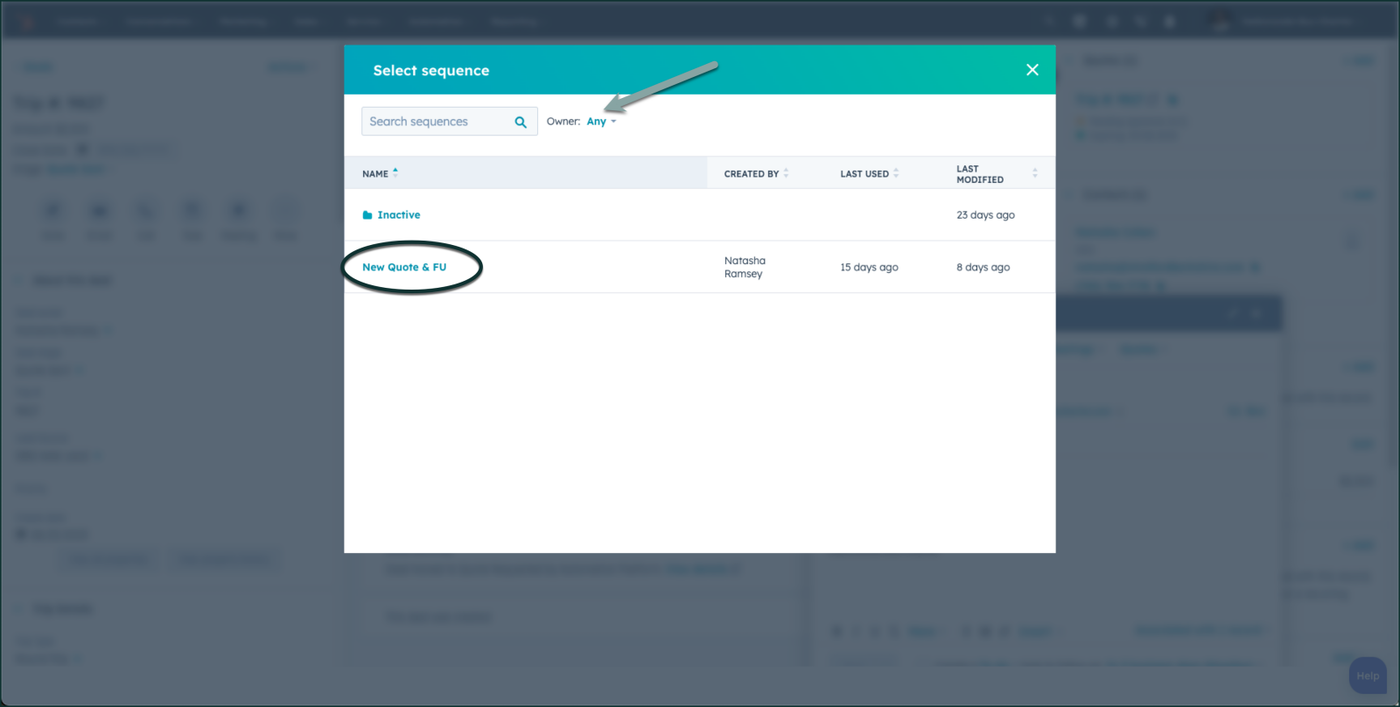
Step 4 - Navigate to New Quote & FU
Click on the New Quote & FU sequence. Make sure that the owner view is shown as "Any" to see all sequences created for Nationwide Bus Charter. Make sure that you have all details of the trip completed, so that there are no errors. You can then click on Start Sequence to enroll that contact in a sequence.
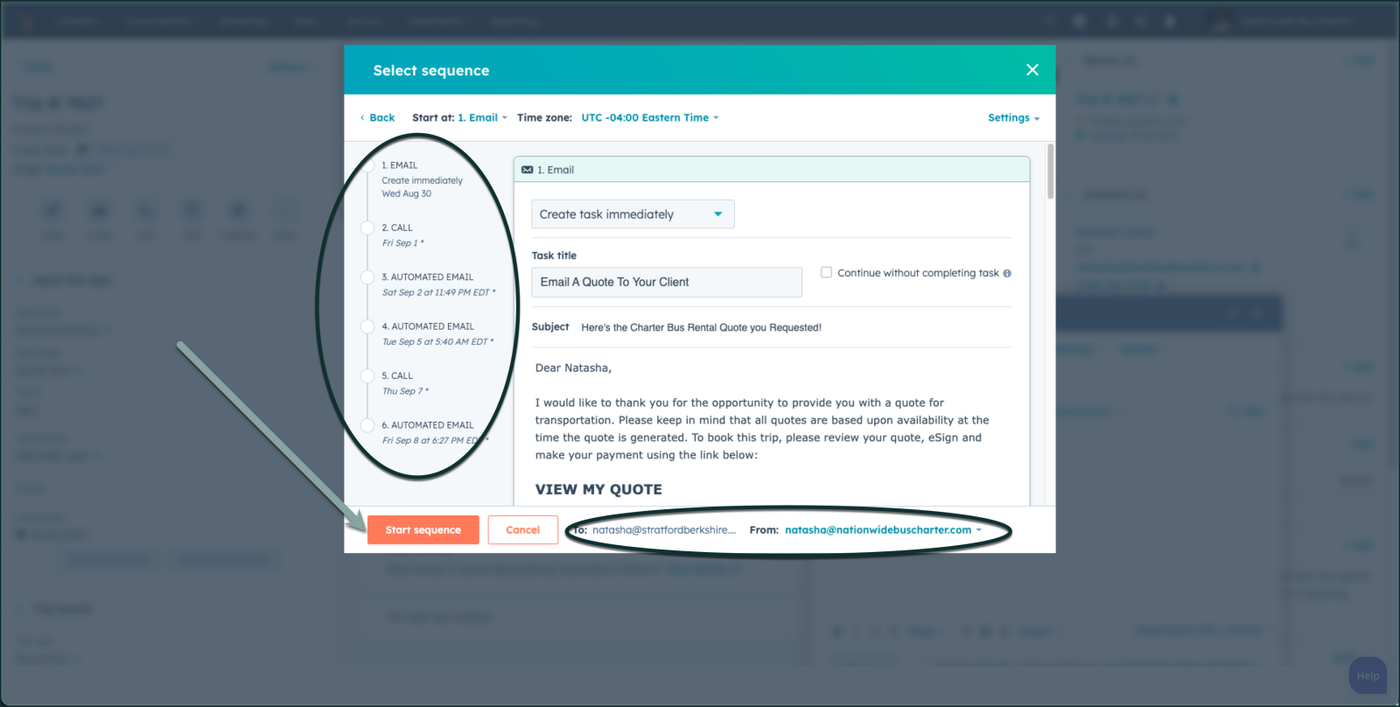
Step 5 - Start Sequence
Make sure that you have all details of the trip completed, so that there are no errors. You can then click on Start Sequence to enroll that contact in a sequence.
Step 6 - Navigate to the Contact
On the right side, navigate to the contact that you have enrolled in this sequence.
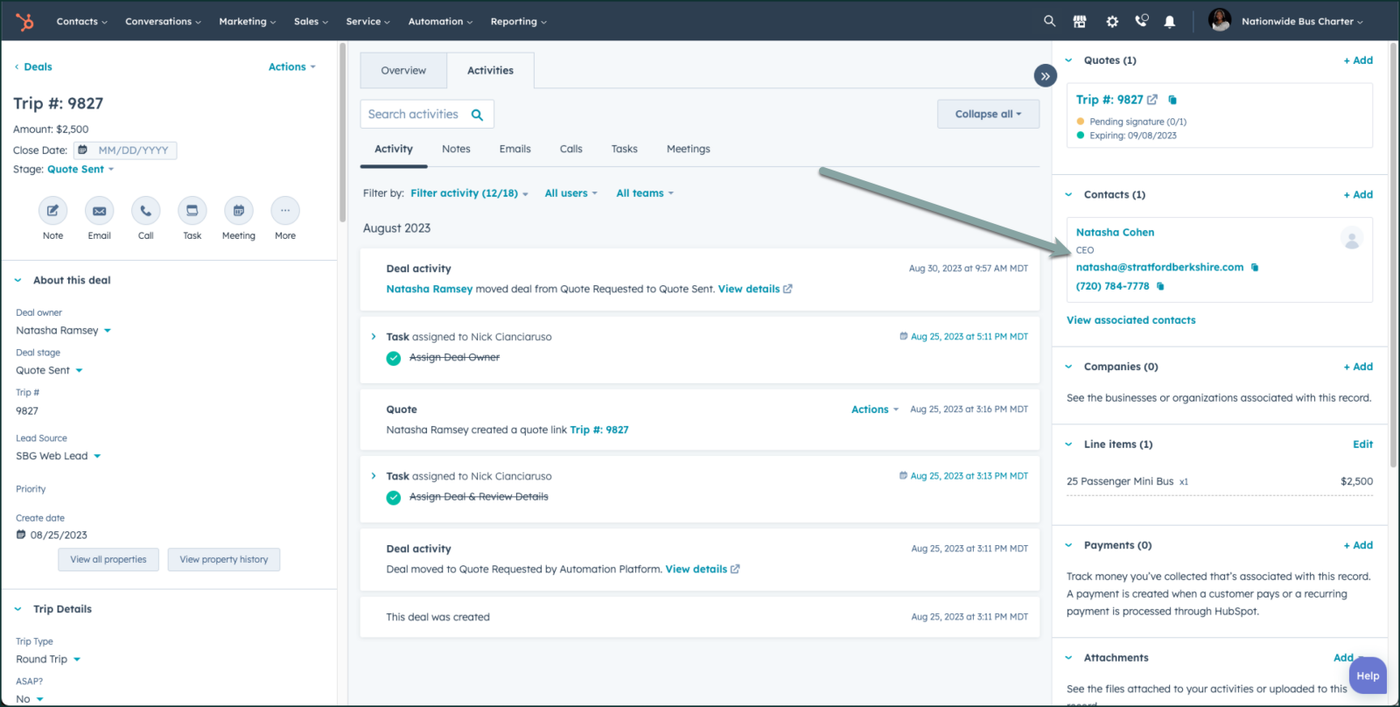
Step 7 - Ensure the Contact is Enrolled
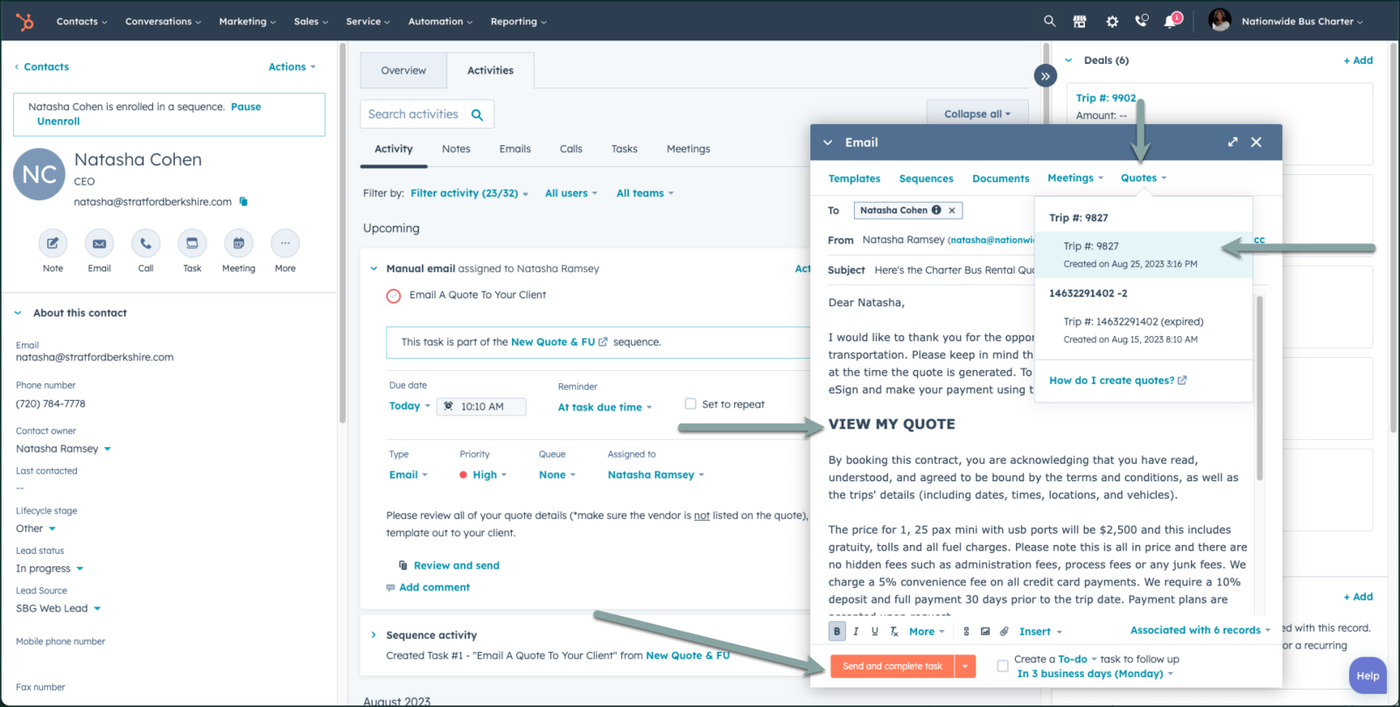
When you are in the contact's screen, you will know that the contact is enrolled in a sequence, because it will have a mesage displayed above the contact's name, that shares that information. This is the same area where you will pause or unenroll a customer in a sequence.
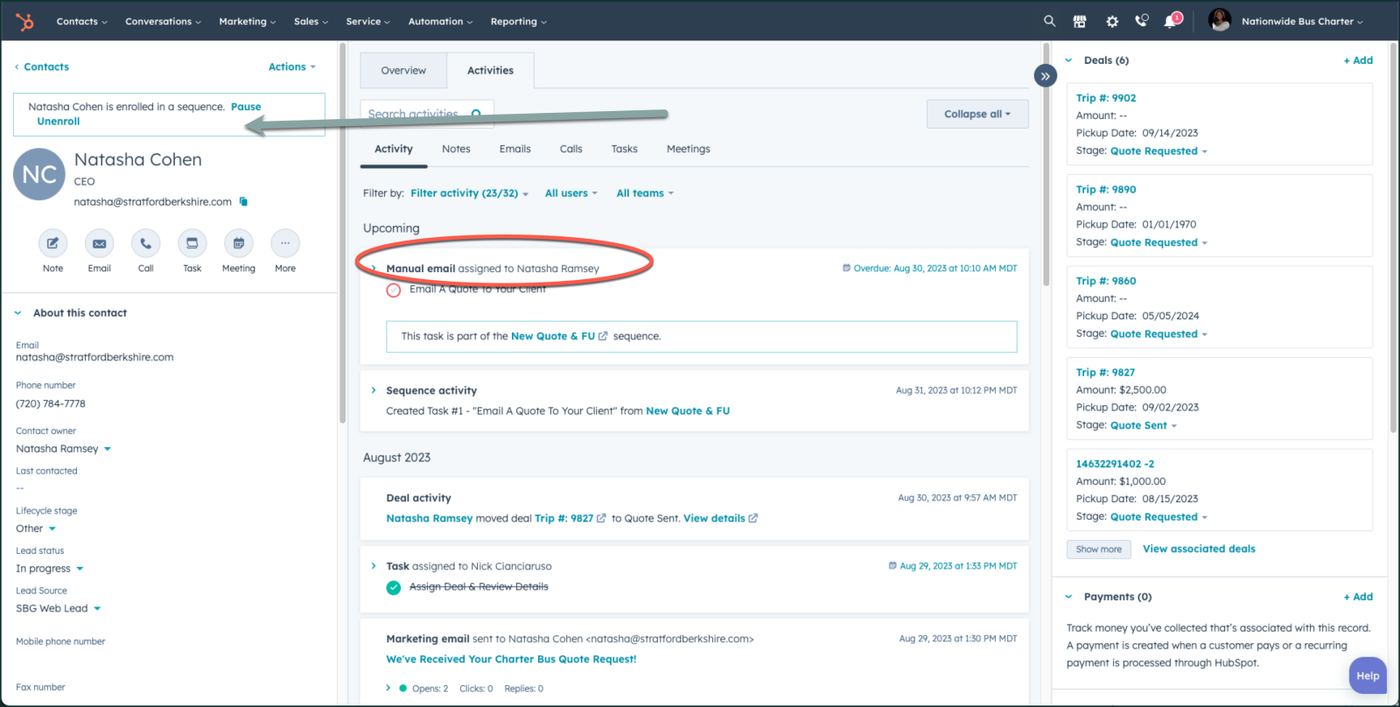
Step 7 - Open the task "Manual Email Assigned to...[your name]"
In the middle of your screen, you will have a new manual task assigned that says Manual Email Assigned to [Your name]. Click on those words, to open the task window more.
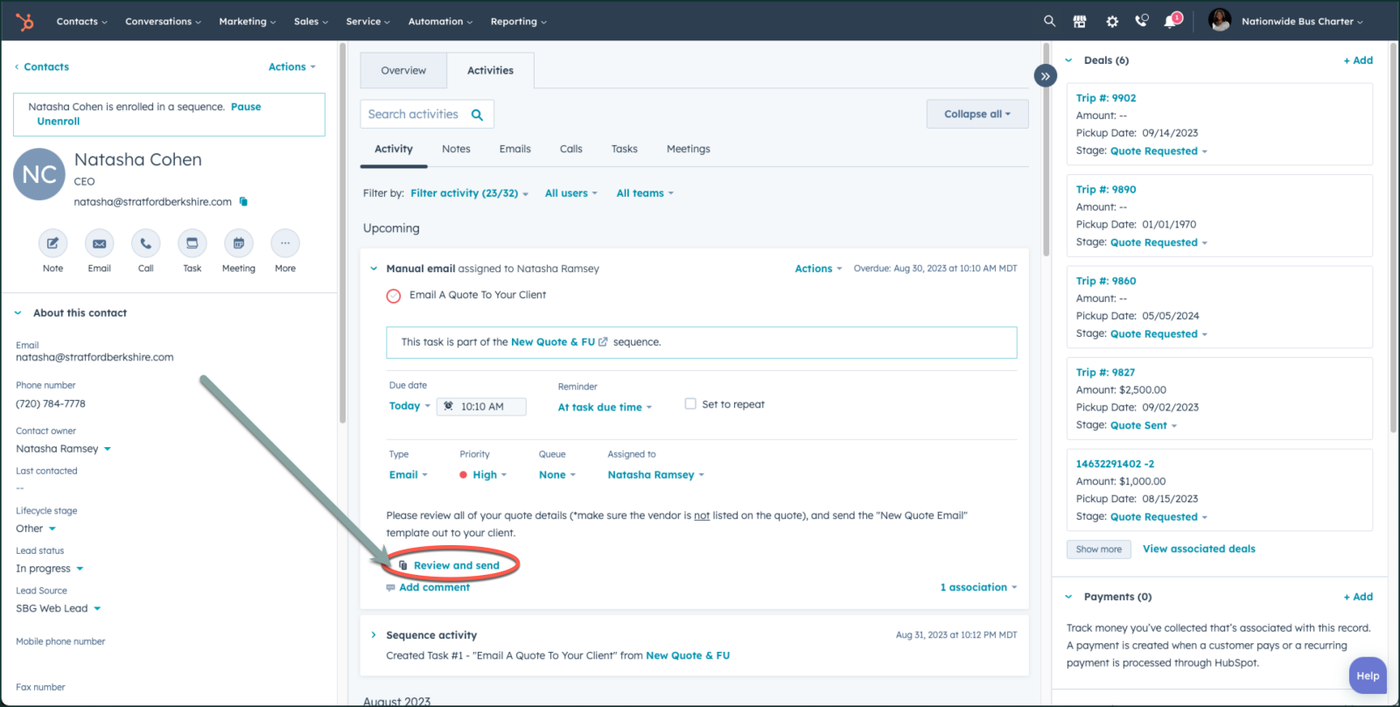
Step 8 - Click on "Review & Send"
In the opened task window, click the button that says "Review & Send", to open the New Quote Email Template.
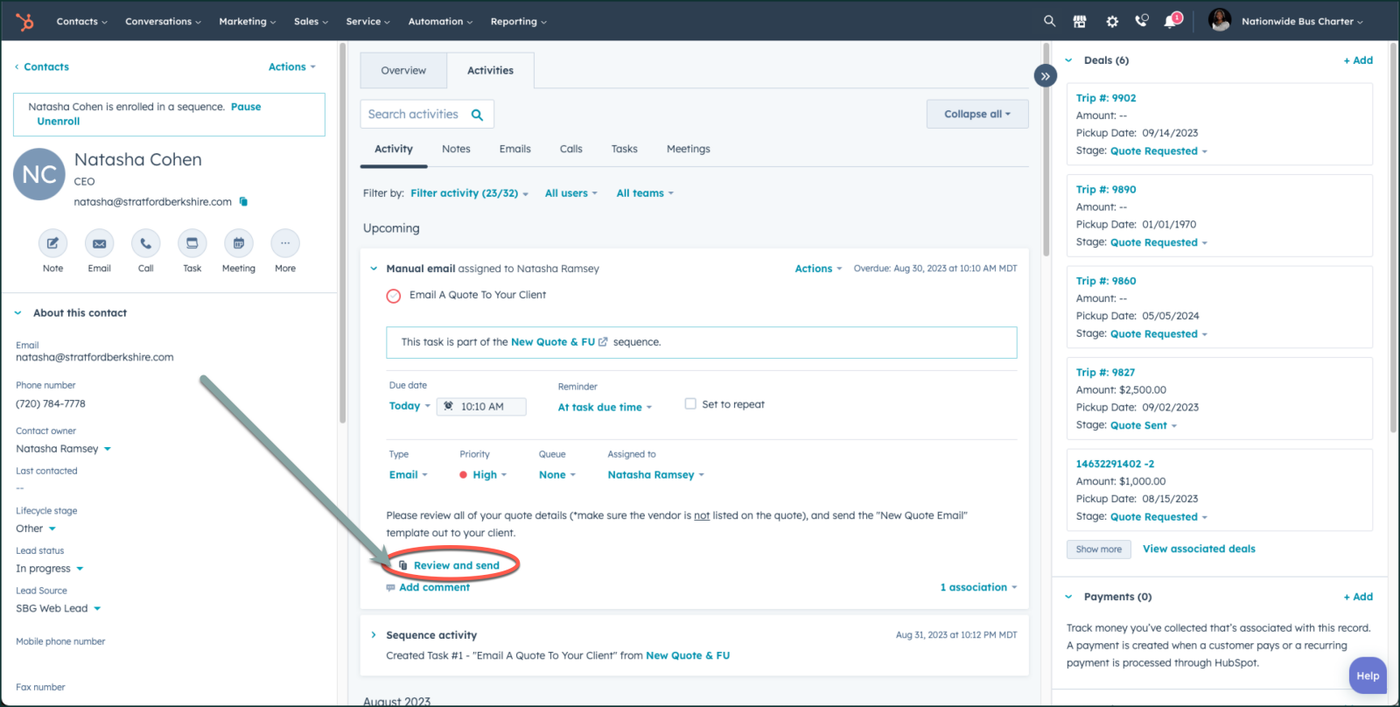
Step 9 - Modify your Email & Send
Proceed forward with modifying your email to send the quote to the customer. You will know you are sending it through the sequence because instead of the word "send", it will now show Send and Complete Task.
👍
CONGRATULATIONS! YOU'VE NOW SUCCESSFULLY ENROLLED YOUR CUSTOMER IN A SEQUENCE AND SENT THEM THEIR QUOTE!
Need Support?
Please visit our Support page and submit a ticket, view knowledge base articles, etc. Or send us an email at helpme@stratfordberkshire.com to open a new ticket.