

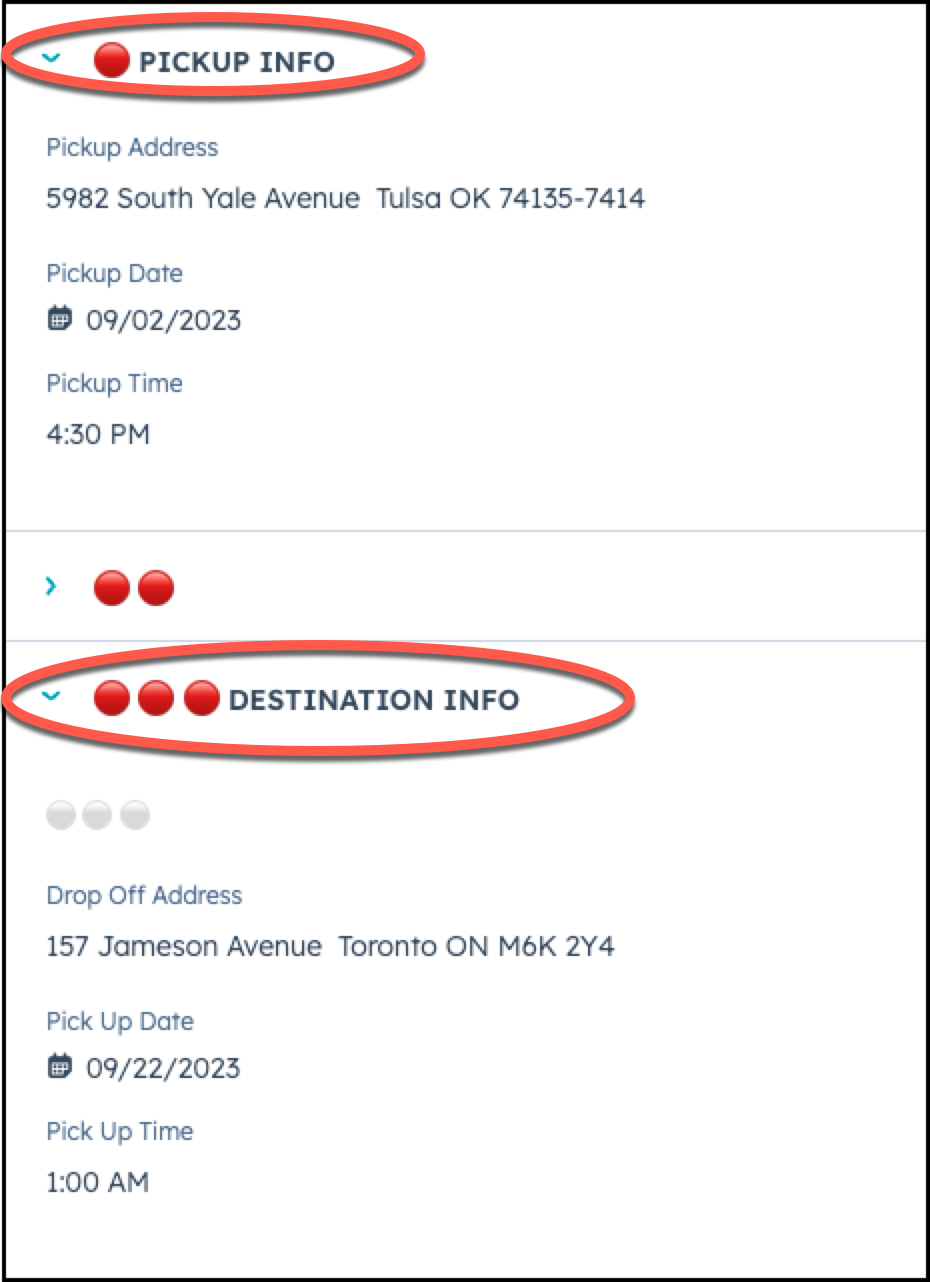
Step 1 - Make sure the correct Itinerary sections are filled out.
Make sure that 🔴PICKUP INFO and 🔴🔴🔴DESTINATION INFO have all sections filled out.
Step 2 - Add A New Quote
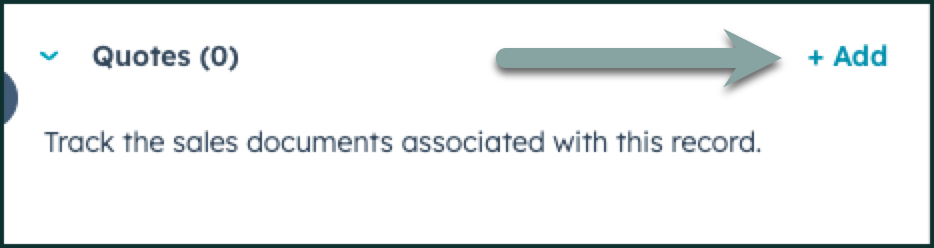
Once you have reviewed your trip details, navigate to the right side of your screen, and click +Add under the Quotes section to create a new quote.
Step 3 - Review / Complete Quote Details
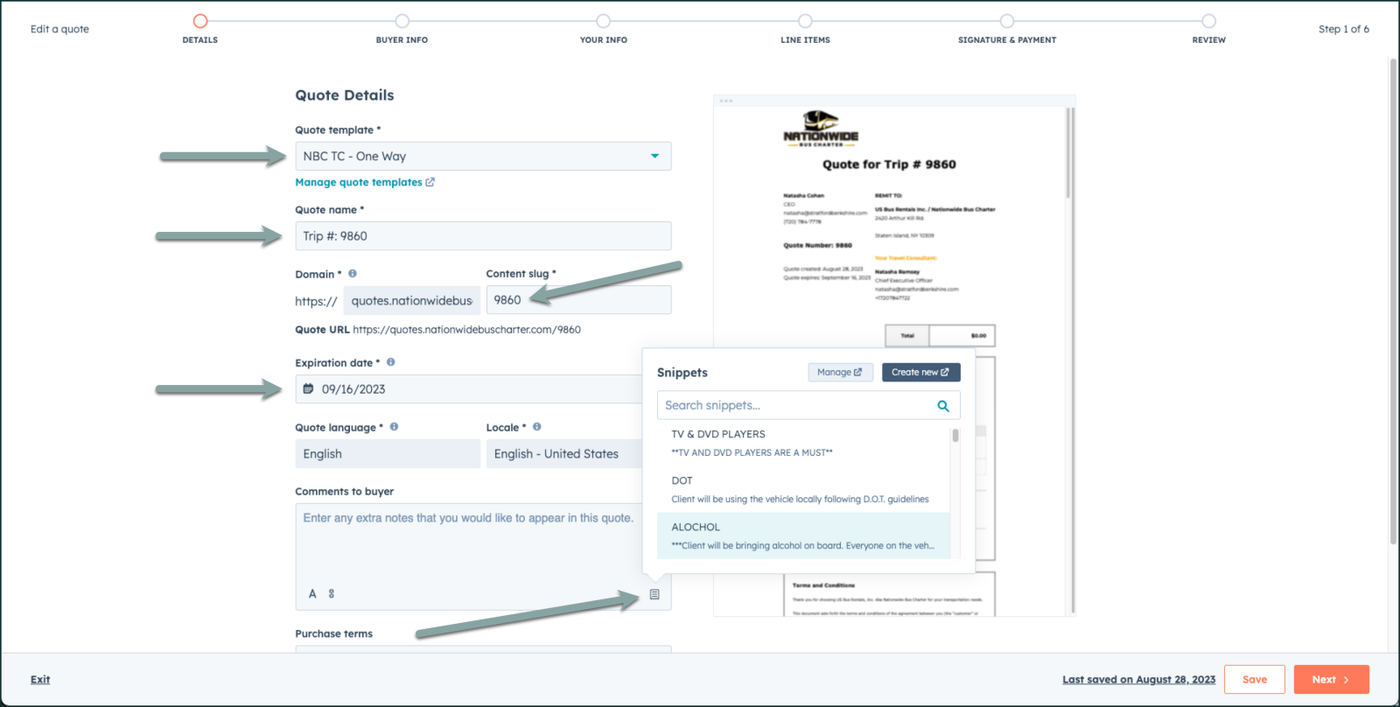
In the pop-up screen, you will be taken to the Quote Details section. Make sure that the following is filled out:
- Select the Quote Template - NBC TC - One Way
- Leave the Quote name as Trip #: XXXXX
- Change the Content Slug to the numbers of the trip
- Select the expiration date of the quote (Once the quote expires, the link will no longer work) This is defaulted to 14 days from today.
- Under Comments to Buyer, add any snippets or notes of your choice.
- IGNORE the Purchase Terms section.
- Choose Next
Step 4 - Review Buyer Info
In this section, make sure that the customer is checked off, and their details are accurate. Please make sure there is no company selected . Then choose next.

Step 5 - Review Your Info
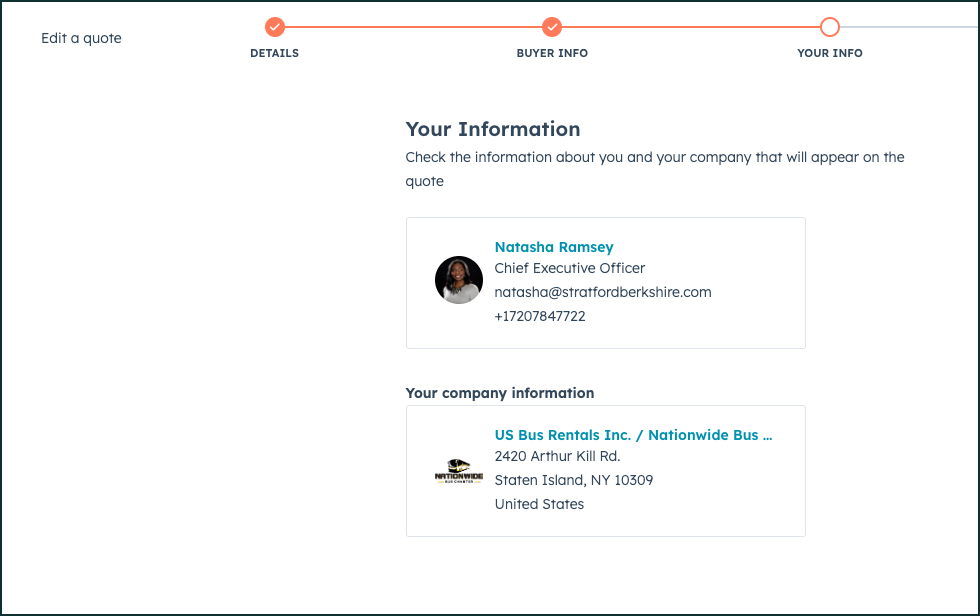
In this section, make sure that your information is correct (name, title, phone number), and then choose next.
Step 6 - Add your line items
In this section, you must add the vehicles, price, and convenience fee.
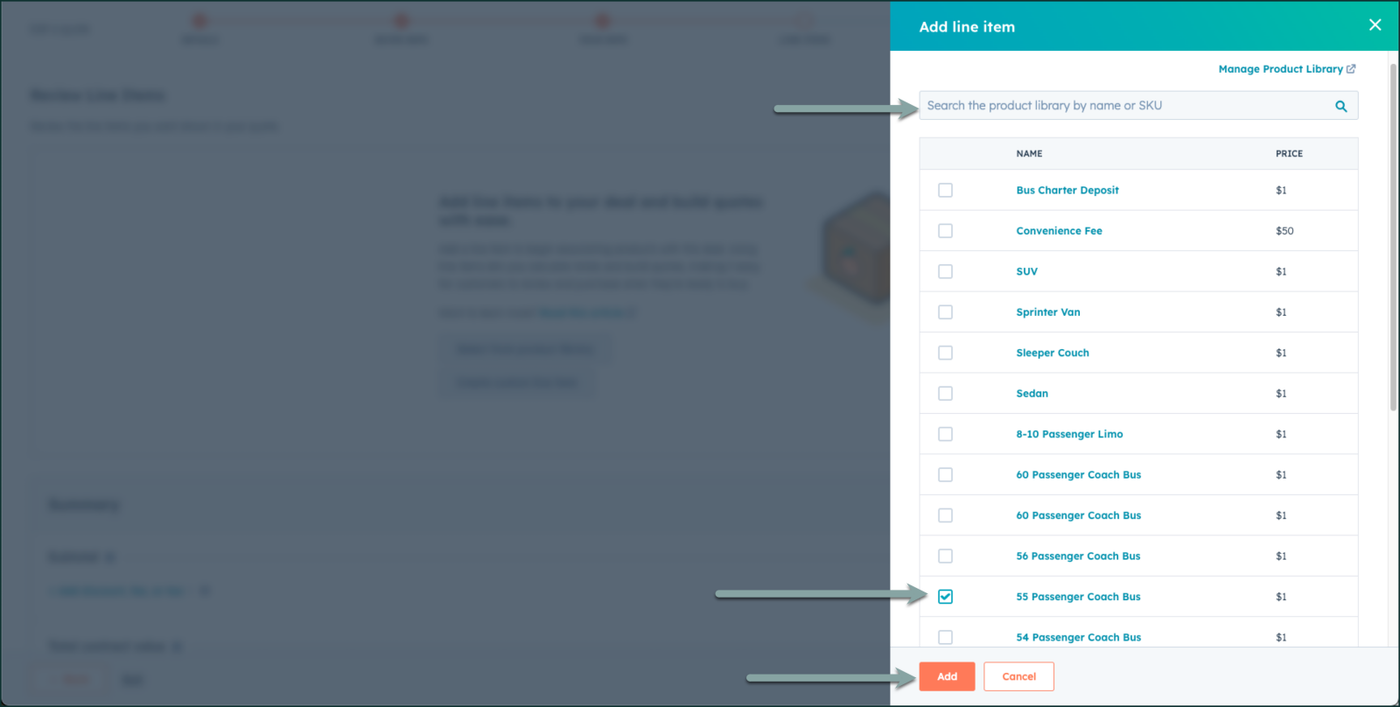
- Choose "Select from Product Library" and find the vehicle type(s) you wish to add. Check the boxes, and choose "add" at the bottom.

- Change the Quantity if applicable & the Unit Price to the cost of the trip.

- Under the Summary section, click +Add discount, fee, or tax and select "Add one time fee"
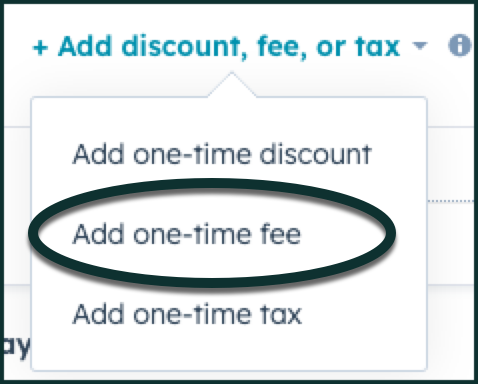
- Type in Convenience Fee and in the USD drop down select the % option and type in 5.

- Review everything and choose Next


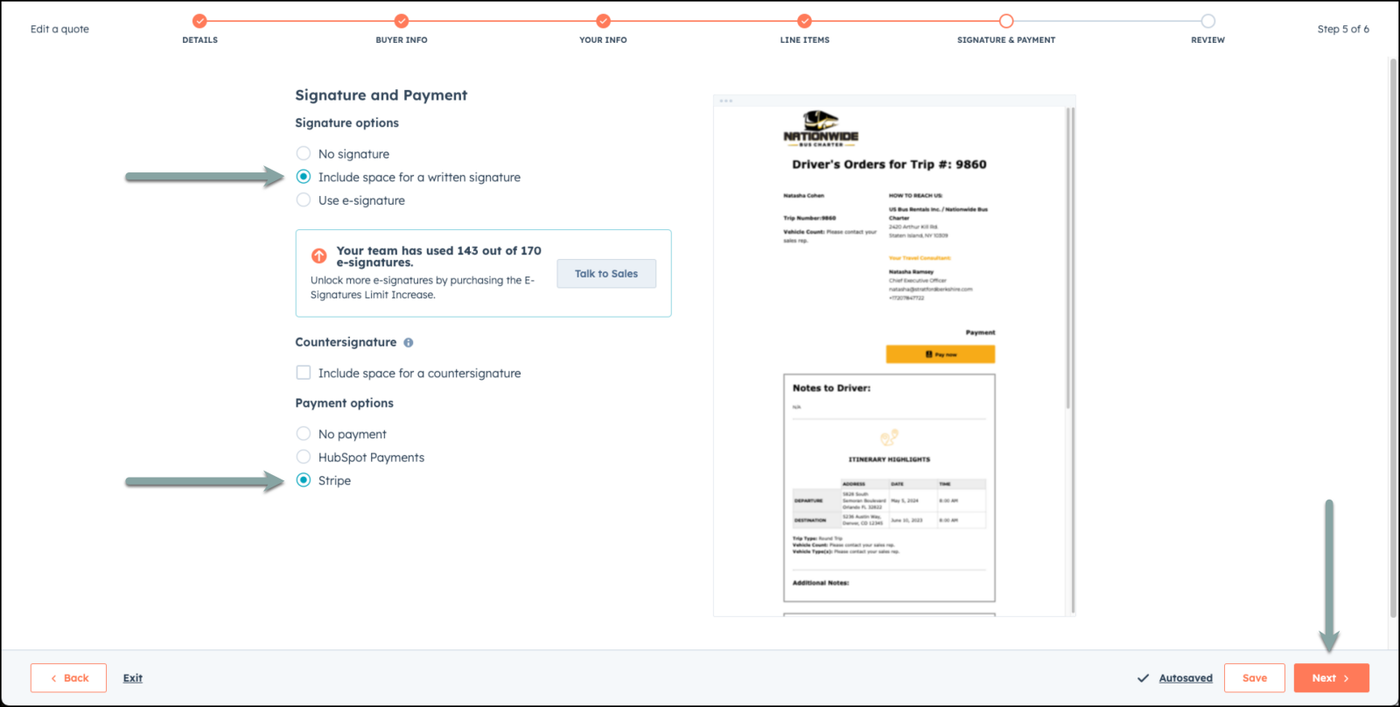
Step 7 - Add space for written Signature & Stripe Payment
In this section, select Include space for a written signature and then choose the name of the recipent that is required to sign the agreement. Then choose the Payment Option of Stripe to enable the full payment as quoted in this trip.
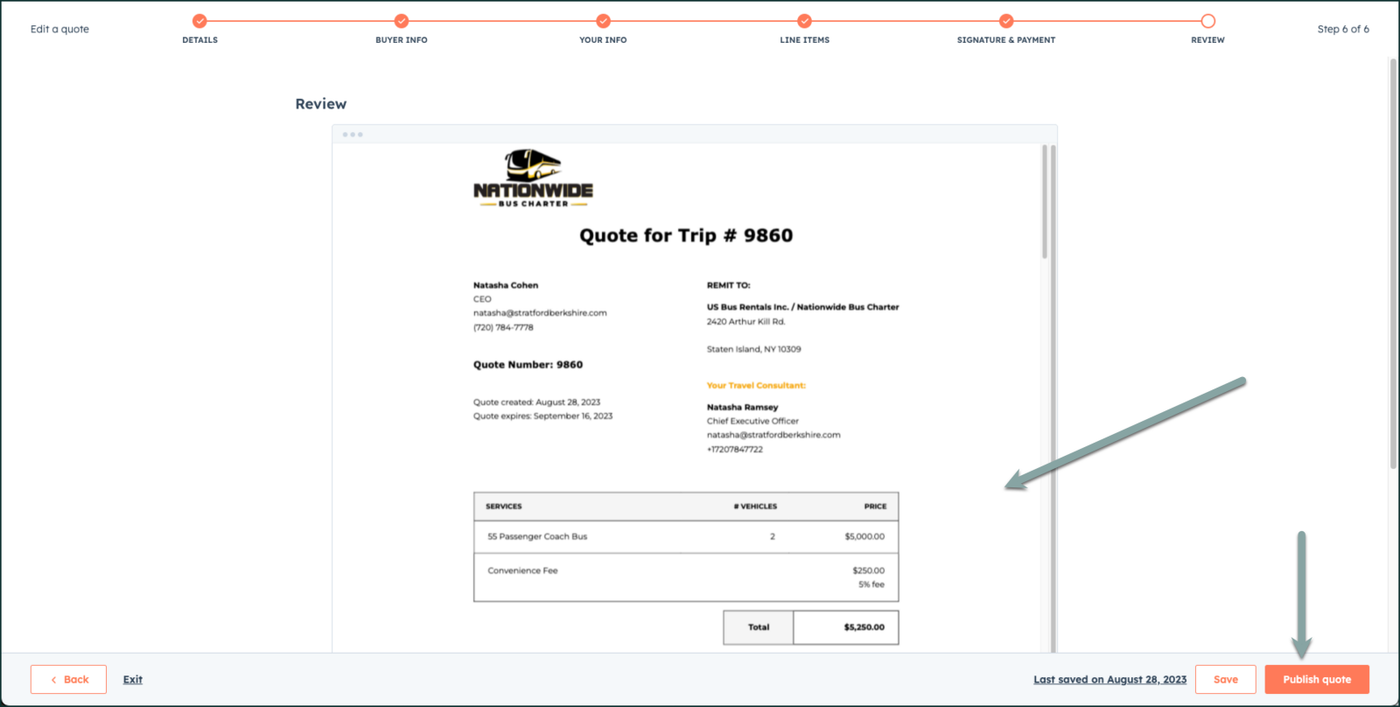
Step 8 - Review Agreement
In this section, review the agreement. Once it looks good to you, choose Publish Quote.
👍
CONGRATULATIONS! YOU'VE NOW PUBLISHED A QUOTE FOR YOUR CUSTOMER.
YOU MAY NOW EMAIL THEM A QUOTE THROUGH THE NEW QUOTE & FU SEQUENCE OR USING THE TEMPLATE.
Need Support?
Please visit our Support page and submit a ticket, view knowledge base articles, etc. Or send us an email at helpme@stratfordberkshire.com to open a new ticket.