

This article will explain how to send the vendor's order in HubSpot.
Step 1 -Confirm your Vendor's Order has been published
Make sure that you have a published Vendors Order already on this deal. If not, please make sure that you create the vendor's order first.
Step 2 -Send Vendor Confirmation Email
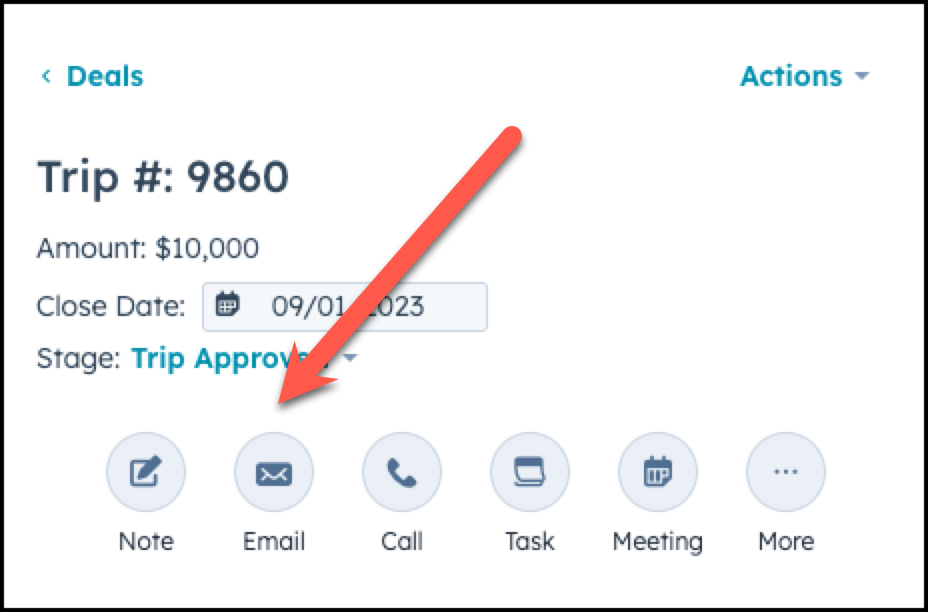
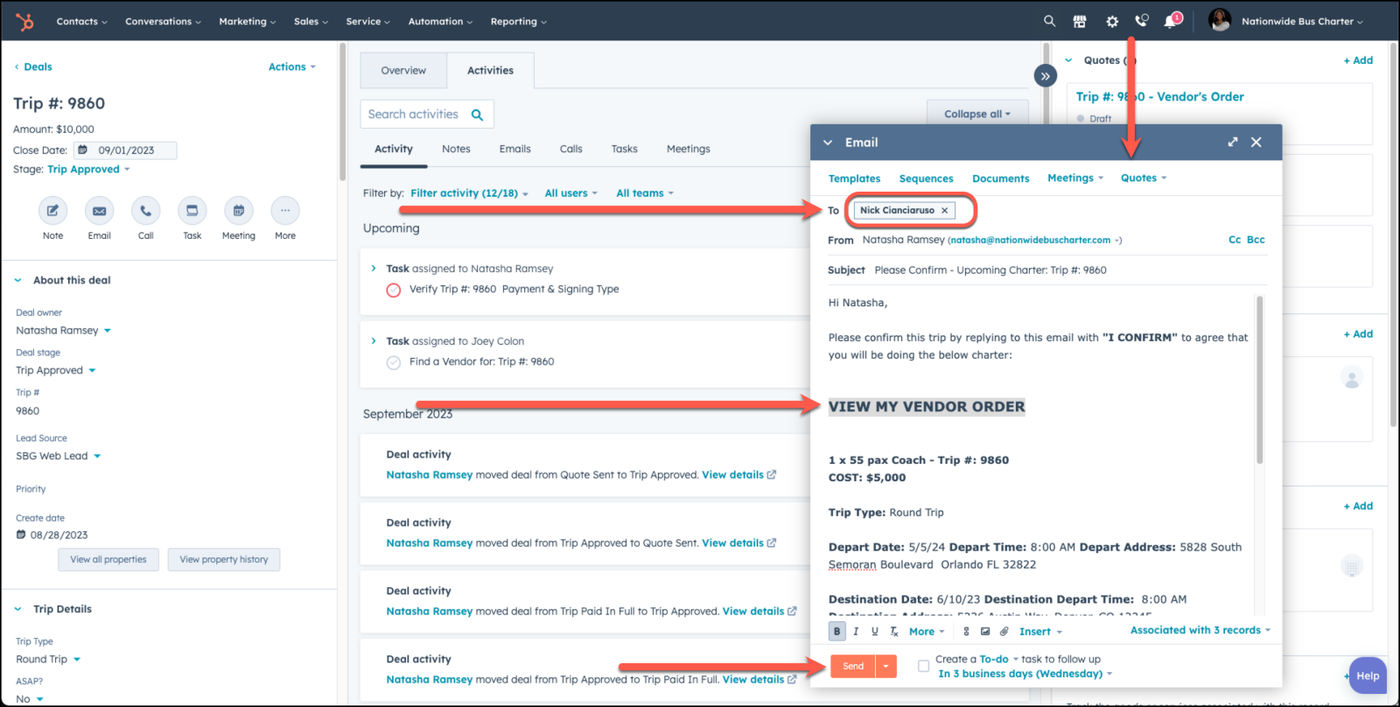
To properly send a vendor confirmation email must be in the deal of choice, and then choose Email.
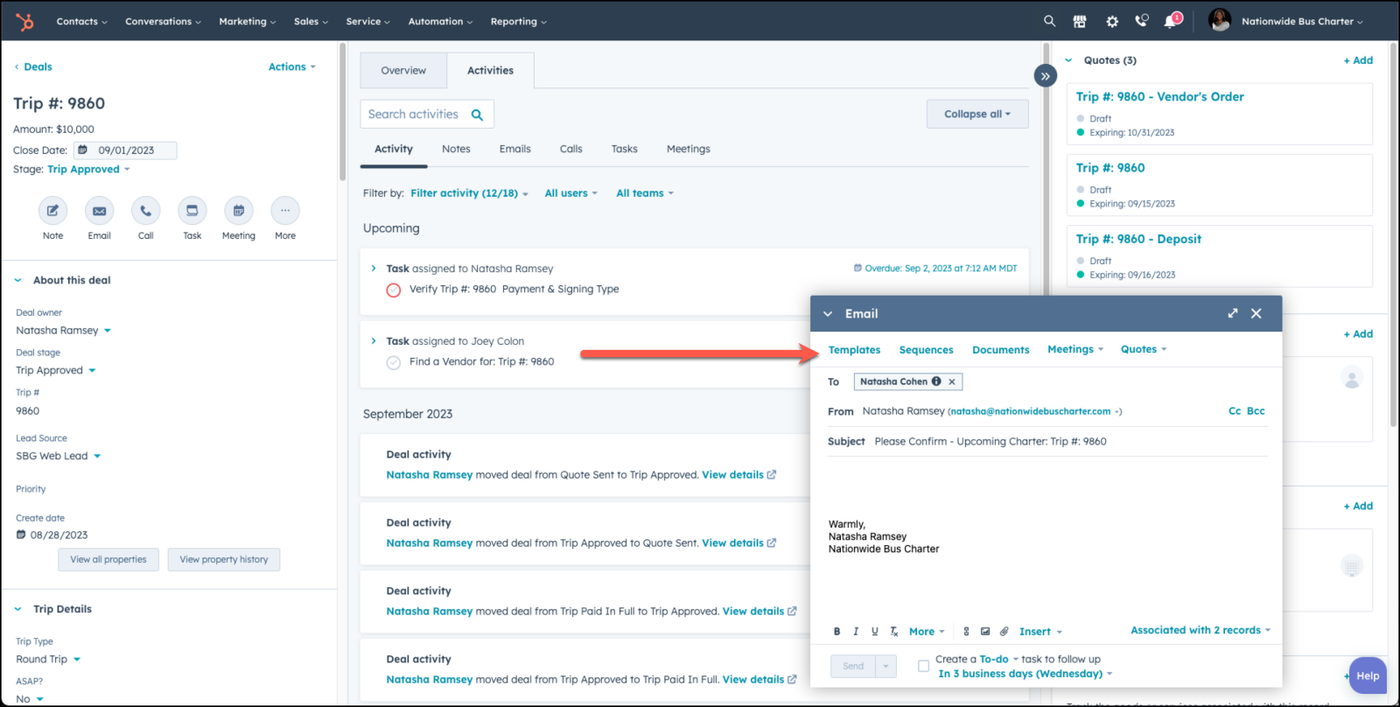
Select Templates in the email pop-up window.
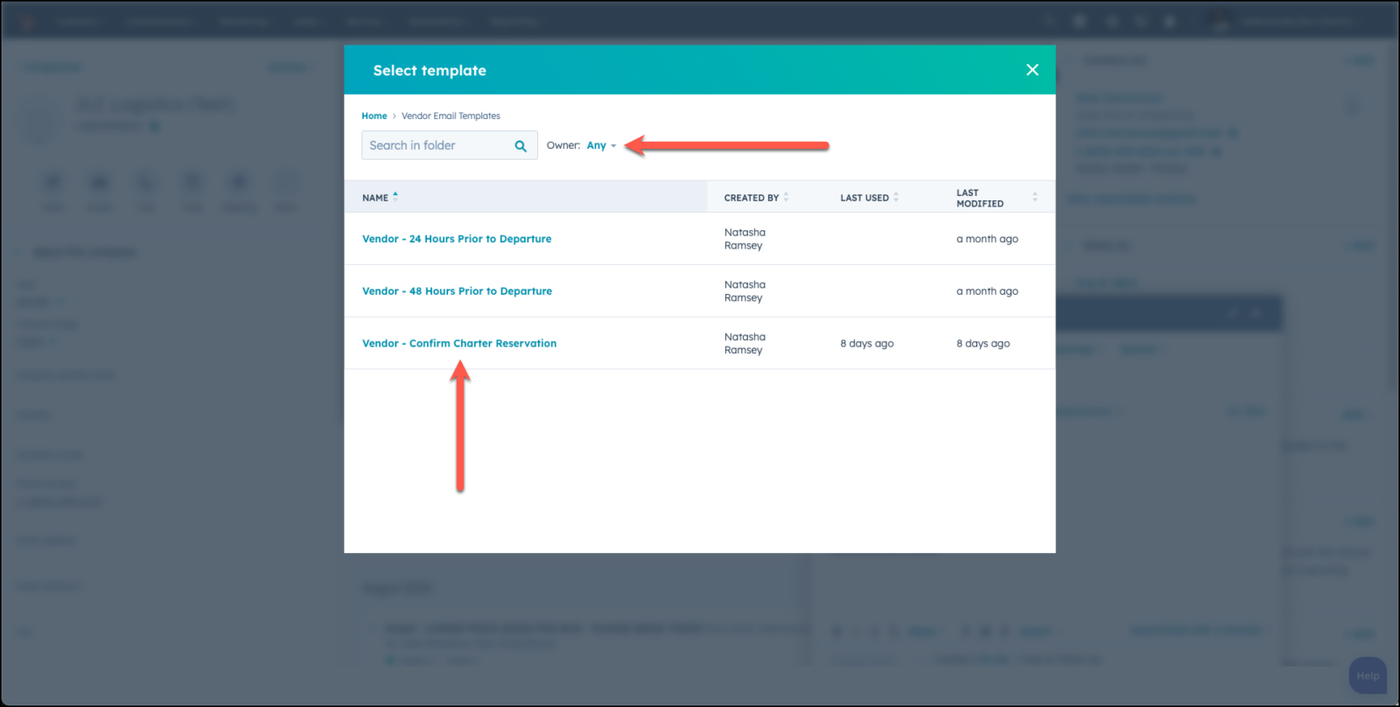
Under Templates, choose the Vendor Email Templates folder, and then choose Vendor Confirmation Email
Update the To field to the name of the associated vendor.
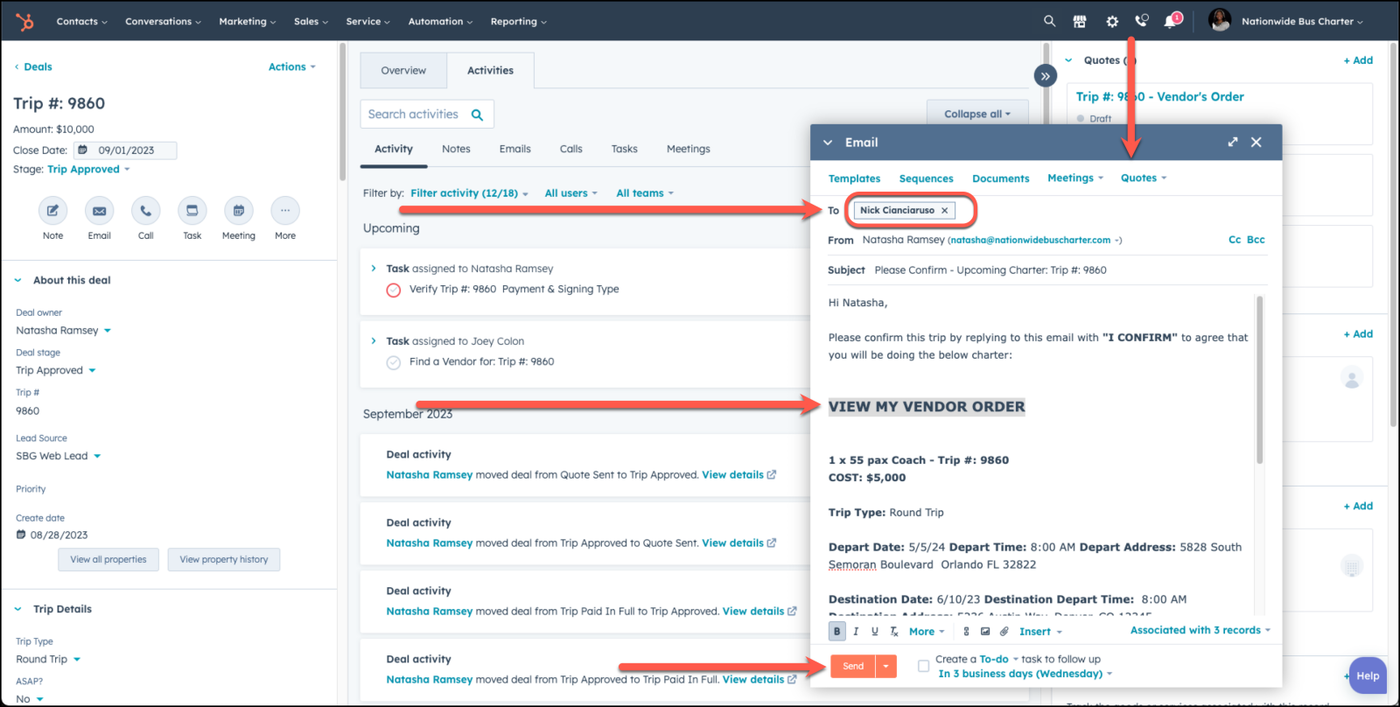
It is very important that you change the To field form the name of your client to the name of the vendor. Failing to do so, will result in the email going directly to the client!
Edit the email template to update the link to the Vendor's Order & choose Send.
👍
Congratulations! You've successfully sent the vendor's order to your vendor!
Need Support?
Please visit our Support page and submit a ticket, view knowledge base articles, etc. Or send us an email at helpme@stratfordberkshire.com to open a new ticket.